
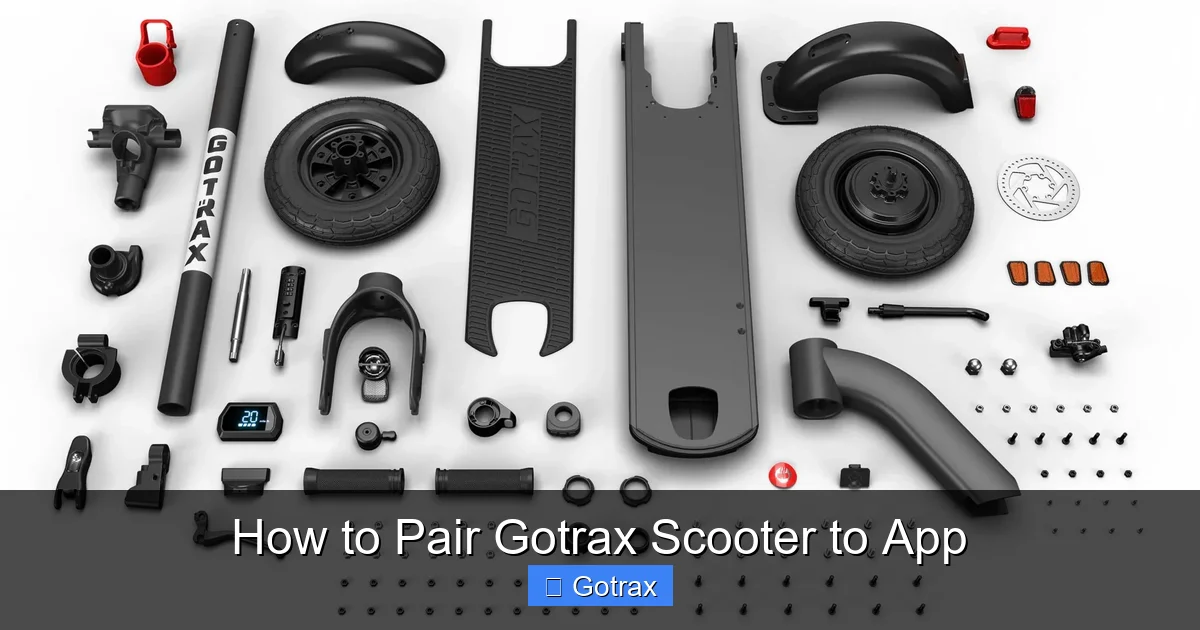
Pairing your Gotrax scooter to the app unlocks powerful features like speed tracking, battery monitoring, and remote locking. This guide walks you through every step—from downloading the app to troubleshooting common issues—so you can ride smarter and safer.
Key Takeaways
- Download the official Gotrax app: Only use the Gotrax app from your device’s app store to ensure compatibility and security.
- Enable Bluetooth on your phone: Your scooter communicates via Bluetooth, so keep it turned on throughout the pairing process.
- Charge your scooter fully before pairing: A low battery can interrupt the connection or prevent pairing altogether.
- Follow the step-by-step pairing sequence: Power on the scooter, open the app, and select your model for a smooth setup.
- Keep your scooter and phone close: Stay within 3–5 feet during pairing to maintain a strong Bluetooth signal.
- Update firmware when prompted: Firmware updates improve performance and fix bugs that may affect app connectivity.
- Troubleshoot common issues: If pairing fails, try restarting both devices, checking Bluetooth permissions, or resetting the scooter.
How to Pair Gotrax Scooter to App: A Complete Step-by-Step Guide
So you’ve just unboxed your brand-new Gotrax scooter—or maybe you’ve had it for a while but haven’t tapped into its full potential yet. Either way, you’re in the right place! Pairing your Gotrax scooter to the official Gotrax app is one of the smartest moves you can make as an electric scooter rider. Not only does it give you real-time data on speed, distance, and battery life, but it also lets you lock your scooter remotely, customize riding modes, and even track your ride history.
In this comprehensive guide, we’ll walk you through everything you need to know to successfully pair your Gotrax scooter to the app—no tech degree required. Whether you’re using an iPhone or Android device, whether you have a GXL, G2, G3, G4, or any other Gotrax model, these steps will work for you. We’ll cover preparation, the actual pairing process, helpful tips, and what to do if things don’t go as planned. By the end, you’ll be cruising with confidence, knowing your scooter is synced, secure, and ready for adventure.
Let’s get started!
Why Pair Your Gotrax Scooter to the App?
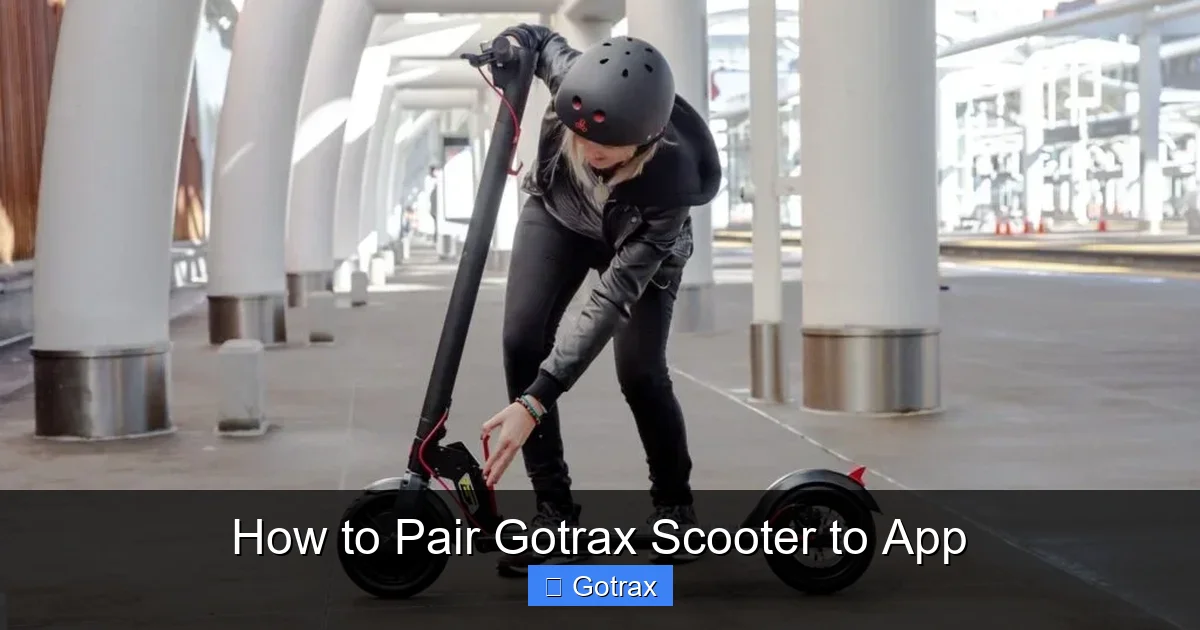
Visual guide about How to Pair Gotrax Scooter to App
Image source: escooterhaven.com
Before diving into the “how,” let’s talk about the “why.” Why should you bother pairing your scooter to an app? After all, it rides just fine without it, right?
Well, yes—but think of the app as your scooter’s command center. Once connected, you unlock a suite of features that enhance safety, convenience, and performance:
– **Real-time battery monitoring**: See exactly how much juice you have left—no more guessing if you’ll make it home.
– **Speed and distance tracking**: Log your rides, set goals, and monitor your progress over time.
– **Remote lock/unlock**: Prevent theft by locking your scooter directly from your phone (available on select models).
– **Ride mode customization**: Switch between Eco, Sport, and Normal modes to match your riding style or terrain.
– **Firmware updates**: Keep your scooter running smoothly with the latest software improvements.
– **Ride diagnostics**: Get alerts if something’s off—like a loose brake or low tire pressure (on supported models).
In short, pairing your Gotrax scooter to the app transforms it from a simple ride into a smart, connected mobility solution. And the best part? It only takes a few minutes to set up.
What You’ll Need Before You Start
Before you begin the pairing process, make sure you have the following ready:
A Fully Charged Gotrax Scooter
Low battery can cause connectivity issues or interrupt the pairing process. Plug in your scooter and let it charge to 100% before starting. Most Gotrax models take 4–6 hours for a full charge.
A Smartphone with Bluetooth Enabled
Your phone must have Bluetooth turned on. This is non-negotiable—the app communicates with your scooter exclusively via Bluetooth Low Energy (BLE).
The Official Gotrax App Installed
Download the Gotrax app from the Apple App Store (for iPhone) or Google Play Store (for Android). Avoid third-party apps—they won’t work and could pose security risks.
Your Scooter’s Model Number (Optional but Helpful)
While the app usually detects your model automatically, knowing it ahead of time (e.g., GXL V2, G4, etc.) can help if you run into issues. You’ll find the model number on a sticker near the rear wheel or under the deck.
A Quiet, Open Space
Bluetooth signals can be disrupted by walls, metal objects, or other electronic devices. Find a clear area with minimal interference—ideally outdoors or in a large room.
Step-by-Step Guide: How to Pair Your Gotrax Scooter to the App
Now that you’re prepared, let’s walk through the pairing process. Follow these steps carefully, and you’ll be connected in under 10 minutes.
Step 1: Download and Install the Gotrax App
Open your phone’s app store and search for “Gotrax.” Look for the official app—it should have the Gotrax logo (a blue and white “G” inside a circle) and be published by “Gotrax Inc.”
Tap “Install” or “Get,” then wait for the download to complete. Once installed, open the app. You’ll be greeted with a welcome screen and prompted to create an account or log in.
Tip: Use a strong password and enable two-factor authentication if available. This protects your ride data and prevents unauthorized access.
Step 2: Power On Your Gotrax Scooter
Press and hold the power button on your scooter for 2–3 seconds until the display lights up. You should see the battery indicator, speedometer, and other basic info.
Important: Do not start riding yet! Keep the scooter stationary during pairing.
Step 3: Enable Bluetooth on Your Phone
Go to your phone’s settings and make sure Bluetooth is turned on. On iPhone, swipe down from the top-right corner to access Control Center and tap the Bluetooth icon. On Android, swipe down from the top and tap the Bluetooth tile.
Pro Tip: If Bluetooth was off, turn it on and wait 10–15 seconds for your phone to scan for nearby devices.
Step 4: Open the Gotrax App and Log In
Launch the Gotrax app and sign in with your credentials. If you don’t have an account, tap “Sign Up” and follow the prompts. You’ll need to provide an email address and create a password.
Once logged in, you’ll see the main dashboard. Look for a button or option that says “Add Scooter,” “Pair Device,” or “Connect.” Tap it.
Step 5: Select Your Scooter Model
The app will ask you to choose your Gotrax model from a list (e.g., G2, G3, G4, GXL, etc.). If you’re not sure, check the sticker on your scooter or refer to your user manual.
After selecting your model, the app will begin scanning for nearby Gotrax scooters. This may take 10–30 seconds.
Step 6: Put Your Scooter in Pairing Mode
Most Gotrax scooters enter pairing mode automatically when powered on and not in use. However, if the app doesn’t detect your scooter, you may need to manually activate pairing mode:
– On most models: Press and hold the power button for 5–7 seconds until the display flashes or beeps.
– On some newer models: Tap the power button three times quickly.
Watch for a blinking light or message on the scooter’s display indicating it’s ready to pair.
Step 7: Confirm the Connection
When the app detects your scooter, it will display the model name and a prompt like “Connect” or “Pair Now.” Tap it.
You may see a pop-up asking for Bluetooth permission—tap “Allow” or “OK.”
Within a few seconds, the app should confirm a successful connection. You’ll see your scooter’s name on the dashboard, along with real-time data like battery level and speed.
Congratulations! Your Gotrax scooter is now paired to the app.
What to Do After Pairing
Now that you’re connected, here’s how to make the most of your Gotrax app experience:
Explore the Dashboard
The main screen shows your scooter’s status at a glance. Tap on different sections to view detailed stats like total mileage, average speed, and trip history.
Customize Your Ride Modes
Go to the “Settings” or “Ride Mode” section to switch between Eco (saves battery), Normal (balanced), and Sport (maximum speed). Some models also offer a “Cruise Control” option.
Enable Remote Lock (If Available)
On supported models like the G4, you can lock your scooter remotely. This disables the motor and triggers an alarm if someone tries to move it. Perfect for quick stops at the store or café.
Check for Firmware Updates
Gotrax regularly releases updates to improve performance and fix bugs. Go to “Device Settings” > “Firmware Update” to see if an update is available. If so, follow the on-screen instructions—usually, you’ll need to keep the scooter on and connected during the update.
Log Your Rides
Every time you ride, the app automatically records your trip. Review past rides to track your progress, identify patterns, or share your stats with friends.
Troubleshooting Common Pairing Issues
Even with perfect preparation, sometimes things don’t go as planned. Here’s how to fix the most common pairing problems:
Issue 1: App Doesn’t Detect the Scooter
Solution:
– Make sure Bluetooth is on and working (try pairing another device like headphones).
– Move closer to the scooter—stay within 3–5 feet.
– Restart both the scooter and your phone.
– Ensure the scooter is in pairing mode (check the display for flashing lights).
Issue 2: Pairing Fails or Times Out
Solution:
– Close and reopen the Gotrax app.
– Forget the scooter from your phone’s Bluetooth settings, then try again.
– Charge the scooter to at least 50%—low battery can cause timeouts.
Issue 3: App Shows “Connection Lost” During Use
Solution:
– This is normal if you ride too far from your phone (Bluetooth range is ~30 feet).
– Keep your phone in your pocket or bag while riding.
– Avoid areas with heavy Wi-Fi or cellular interference.
Issue 4: Firmware Update Fails
Solution:
– Ensure a stable Bluetooth connection throughout the update.
– Don’t turn off the scooter or close the app during the process.
– If it fails, wait 10 minutes and try again.
Issue 5: App Crashes or Freezes
Solution:
– Update the app to the latest version.
– Clear the app cache (iPhone: offload and reinstall; Android: go to Settings > Apps > Gotrax > Storage > Clear Cache).
– Restart your phone.
Pro Tips for a Smooth Experience
To keep your Gotrax scooter and app working perfectly, follow these best practices:
– **Keep the app updated**: New versions often include bug fixes and new features.
– **Charge regularly**: Don’t let the battery drop below 20%—it can affect Bluetooth performance.
– **Avoid extreme temperatures**: Cold weather can reduce battery life and signal strength.
– **Use a phone mount**: If you like to track your ride in real time, mount your phone on the handlebars (safely!).
– **Log out on shared devices**: If you use a family phone, log out of the app to protect your data.
Conclusion
Pairing your Gotrax scooter to the app is a simple yet powerful upgrade that enhances every aspect of your riding experience. From monitoring battery life to locking your scooter remotely, the app puts control at your fingertips.
By following this guide, you’ve learned how to download the app, prepare your scooter, complete the pairing process, and troubleshoot common issues. You’re now ready to ride smarter, safer, and more confidently.
Remember: a little setup goes a long way. Take the time to explore all the features the Gotrax app offers—you might discover tools that make your daily commute or weekend adventures even better.
So charge up, power on, and pair away. Your Gotrax scooter is ready to connect.