
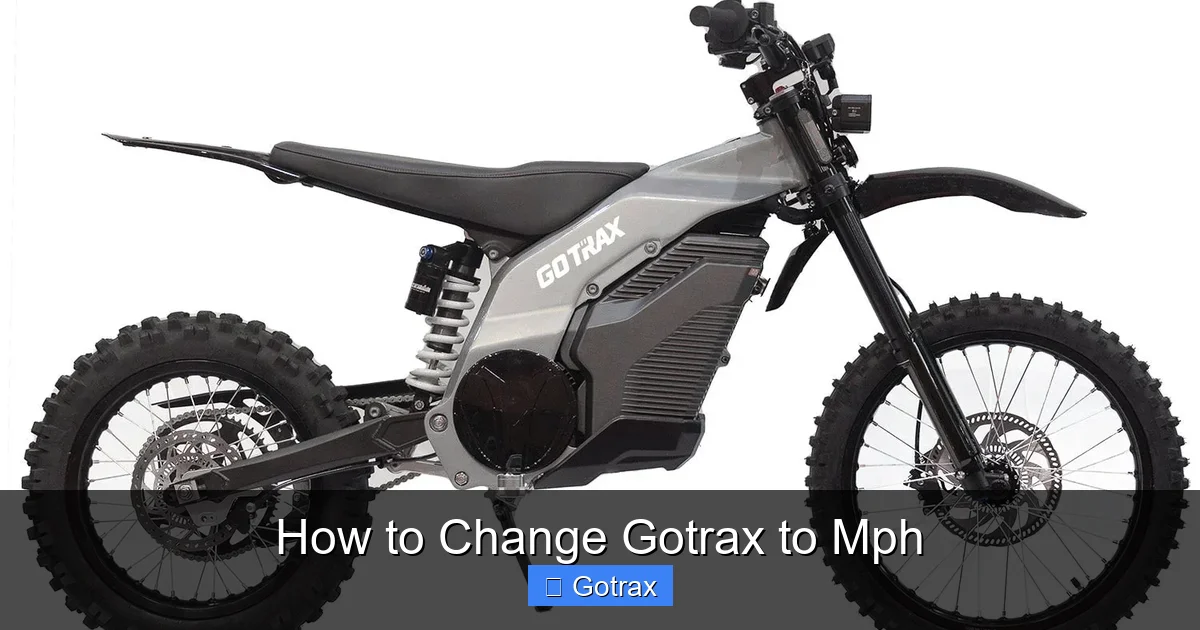
Changing your Gotrax scooter from kilometers per hour (km/h) to miles per hour (mph) is simple and only takes a few button presses. This guide walks you through the exact steps for different Gotrax models, ensuring accurate speed readings for safer, more familiar riding.
Key Takeaways
- Most Gotrax scooters allow unit switching via the display panel – no app or tools required.
- You’ll need to access the settings menu by holding specific buttons for 3–5 seconds.
- Not all Gotrax models support mph – check your user manual first if you have an older or international version.
- Always test the change in a safe, open area before riding at higher speeds.
- Using mph helps comply with local traffic laws and makes speed monitoring easier for U.S. riders.
- If your scooter doesn’t switch units, a firmware update may be needed – visit Gotrax support for help.
- Keep your scooter charged during the process to avoid interruptions that could reset settings.
Introduction: Why Switch Gotrax to mph?
If you’re riding a Gotrax electric scooter in the United States, Canada, or any other country that uses the imperial system, seeing your speed in kilometers per hour (km/h) can be confusing. Most road signs, speed limits, and personal expectations are based on miles per hour (mph). That’s why knowing how to change Gotrax to mph is essential for safe, confident riding.
Gotrax scooters are designed with global compatibility in mind, which means many models default to km/h—especially those sold internationally or shipped from regions that use the metric system. But the good news? Most modern Gotrax scooters allow you to switch between km/h and mph directly from the handlebar display. No apps, no software downloads, and no technical skills required.
In this comprehensive guide, we’ll walk you through the exact steps to convert your Gotrax scooter’s speed display from km/h to mph. Whether you own a Gotrax GXL, G4, G2, XR, or another popular model, we’ve got you covered. You’ll also learn troubleshooting tips, safety reminders, and answers to common questions so you can ride smarter and safer.
By the end of this guide, you’ll be able to confidently check your speed in mph, match local traffic regulations, and enjoy a smoother, more intuitive riding experience.
What You’ll Need Before Starting
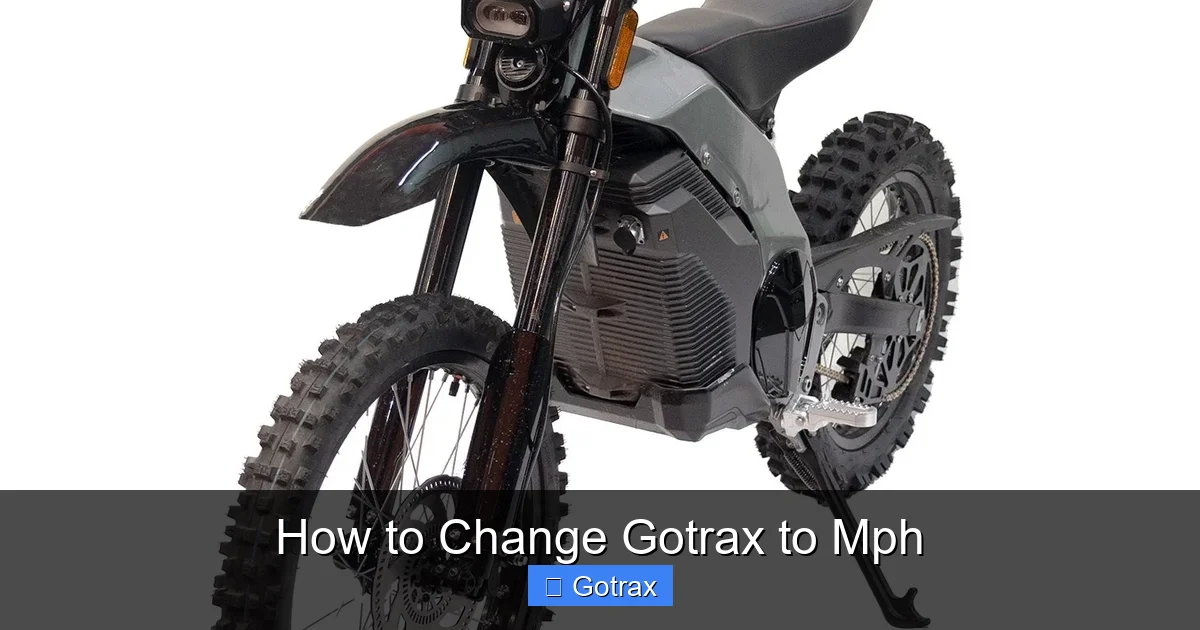
Visual guide about How to Change Gotrax to Mph
Image source: gotrax.com
Before you begin changing your Gotrax scooter’s speed units, make sure you have the following:
- A fully charged Gotrax scooter – Low battery can interrupt the settings process or cause the scooter to reset.
- The user manual for your specific model – While we’ll cover most models, your manual confirms compatibility and provides model-specific details.
- A safe, flat surface to stand on – You’ll be pressing buttons on the handlebar, so stability is key.
- About 2–3 minutes of uninterrupted time – The process is quick, but rushing can lead to mistakes.
It’s also helpful to know your scooter’s exact model number. You can usually find this on a sticker underneath the deck or near the rear wheel. Common models include the Gotrax GXL V2, G4, G2, XR Elite, and Apex. Each has slightly different button layouts, so identifying your model ensures you follow the correct steps.
Step-by-Step Guide: How to Change Gotrax to mph
Now that you’re prepared, let’s get into the actual process. The steps vary slightly depending on your Gotrax model, but the core method remains the same: accessing the settings menu via the display panel and toggling the unit preference.
Below, we’ve broken down the process by model type to make it as clear as possible.
For Gotrax GXL, GXL V2, and G4 Models
These are some of the most popular Gotrax scooters, and they share a similar interface. Here’s how to switch to mph:
- Turn on your scooter – Press and hold the power button (usually located on the right handlebar) until the display lights up.
- Locate the mode and power buttons – On the GXL and G4, there are typically two buttons: one for power (often labeled “P”) and one for mode (often labeled “M”).
- Enter settings mode – Press and hold both the Power (P) and Mode (M) buttons simultaneously for about 3–5 seconds. You’ll know it worked when the display shows a settings icon or the unit indicator (km/h or mph) begins to blink.
- Toggle the unit – While in settings mode, press the Mode (M) button repeatedly until the display switches from “km/h” to “mph.”
- Save and exit – Press and hold the Power (P) button for 2–3 seconds to confirm your selection and exit settings mode. The display should now show your speed in mph.
Pro Tip: If the unit doesn’t change, try repeating the process. Sometimes the scooter needs a moment to register the input. Also, ensure you’re holding the buttons long enough—rushing can prevent the menu from opening.
For Gotrax G2 and XR Series
The G2 and XR models have a slightly different button layout, but the process is just as straightforward.
- Power on the scooter – Hold the power button until the display activates.
- Find the mode button – On these models, there’s usually a single mode button (often marked with a gear or “M” icon) on the left or right side of the handlebar.
- Enter settings – Press and hold the Mode button for 5–7 seconds. The display should flash or show a settings symbol.
- Switch to mph – While in settings, press the Mode button repeatedly to cycle through options until “mph” appears.
- Confirm and exit – Press and hold the Mode button again for 2–3 seconds to save your choice. The scooter will return to normal operation with mph displayed.
Note: Some XR models may require you to press the throttle slightly while holding the mode button. If the menu doesn’t appear, try gently twisting the throttle while holding the button.
For Gotrax Apex and Other Newer Models
The Gotrax Apex and other recent releases often feature a more advanced display with additional settings. Here’s how to change the unit:
- Turn on the scooter – Press the power button to wake the display.
- Access the menu – Press and hold the Mode button for 3–5 seconds. A menu should appear on the screen with options like “Speed Unit,” “Backlight,” or “Auto-Off.”
- Navigate to Speed Unit – Use short presses of the Mode button to scroll through the menu until you highlight “Speed Unit” or “Unit.”
- Change to mph – Press and hold the Mode button to enter the submenu, then press it again to toggle between “km/h” and “mph.”
- Save and exit – Press and hold the Mode button to confirm, then wait for the menu to close automatically.
Bonus Tip: On some Apex models, you can also adjust the backlight brightness or set an auto-shutdown timer from this same menu. Take a moment to explore other settings while you’re in there!
What If Your Gotrax Doesn’t Switch to mph?
Not all Gotrax scooters support mph—especially older models or those manufactured for international markets. If you’ve followed the steps above and your scooter still shows km/h, here are a few possible reasons and solutions:
Your Model Doesn’t Support mph
Some early Gotrax models, particularly those sold in Europe or Asia, were hardcoded to display only km/h. Unfortunately, there’s no way to change this without modifying the firmware—which is not recommended and may void your warranty.
Solution: Check your user manual or contact Gotrax customer support with your model number. They can confirm whether mph is supported. If not, consider using a conversion chart or a smartphone app to estimate your speed in mph.
Firmware Is Outdated
Gotrax occasionally releases firmware updates that add new features, including unit switching. If your scooter is older but technically capable of mph, a firmware update might unlock the option.
Solution: Visit the official Gotrax website and navigate to the support or downloads section. Look for firmware updates for your specific model. Follow the instructions carefully—usually involving connecting the scooter to a computer via USB and running an update tool.
Warning: Never attempt a firmware update with a low battery. Interruptions during the process can brick your scooter.
Buttons Aren’t Responding
Dirt, moisture, or wear can cause the buttons to stick or fail to register presses.
Solution: Clean the button area gently with a dry cloth. Avoid using water or cleaning sprays directly on the handlebar. If the buttons are physically damaged, contact Gotrax for repair options.
Display Is Frozen or Glitching
Sometimes the display gets stuck due to a software glitch.
Solution: Turn the scooter off completely, wait 10 seconds, then turn it back on. If the issue persists, try a full reset (see troubleshooting section below).
Troubleshooting Common Issues
Even with the best preparation, things don’t always go smoothly. Here’s how to handle the most common problems when changing your Gotrax to mph.
The Settings Menu Won’t Open
If holding the buttons doesn’t trigger the settings mode, try these fixes:
- Ensure the scooter is fully powered on – Some models won’t enter settings unless the motor is ready to ride.
- Try different button combinations – On some models, you may need to press the throttle slightly while holding the buttons.
- Check for firmware updates – As mentioned earlier, outdated software can limit functionality.
- Reset the scooter – Turn it off, wait 30 seconds, then turn it back on and try again.
The Unit Changes Back to km/h After Restarting
This usually means the setting wasn’t saved properly.
- Make sure you held the confirm button long enough – Rushing the final step can prevent the change from saving.
- Repeat the process slowly – Take your time with each button press and hold.
- Check battery level – Low power can cause settings to revert. Charge the scooter fully and try again.
Display Shows Error Codes or Blank Screen
This could indicate a deeper issue.
- Perform a hard reset – Turn off the scooter, disconnect the battery (if accessible), wait 1 minute, then reconnect and power on.
- Contact Gotrax support – If the display remains unresponsive, there may be a hardware fault.
Safety Tips When Riding in mph
Once you’ve successfully changed your Gotrax to mph, it’s important to ride safely and responsibly. Here are some tips to keep in mind:
- Know your local speed limits – In many U.S. cities, electric scooters are limited to 15–20 mph on bike lanes and sidewalks. Always follow local laws.
- Start slow when testing the change – Even if you’re used to riding, take a few minutes to get comfortable with the new speed readout.
- Use hand signals and wear protective gear – Helmets, knee pads, and reflective clothing make you safer and more visible.
- Avoid busy streets until you’re confident – Practice in a park or empty parking lot before riding in traffic.
- Regularly check tire pressure and brakes – Proper maintenance ensures your scooter performs well at any speed.
Why mph Matters for Gotrax Riders
Switching to mph isn’t just about convenience—it’s about safety and compliance. Here’s why it matters:
- Better awareness of speed – When you see “15 mph” instead of “24 km/h,” it’s easier to judge how fast you’re going.
- Compliance with traffic laws – Many jurisdictions regulate e-scooter speeds in mph. Riding with the correct unit helps you stay legal.
- Easier communication – If you’re riding with friends or reporting an issue to support, using mph avoids confusion.
- Improved trip planning – Knowing your average speed in mph helps estimate travel time and battery usage more accurately.
Final Thoughts: Enjoy Your Ride in mph
Changing your Gotrax scooter from km/h to mph is a simple but powerful upgrade. It makes your rides safer, more intuitive, and better aligned with local norms. Whether you’re commuting to work, exploring your neighborhood, or just enjoying a weekend cruise, seeing your speed in familiar units enhances the experience.
Remember, not all models support mph, so always check your manual or contact Gotrax if you’re unsure. And if you run into issues, don’t panic—most problems can be solved with a restart, a firmware update, or a quick call to support.
Now that you know how to change Gotrax to mph, you’re ready to ride with confidence. Charge up, gear up, and enjoy the ride—one mile at a time.