
Resetting your Gotrax hoverboard can solve many common performance issues, from unresponsive controls to balance errors. This guide walks you through the process safely and effectively, ensuring your hoverboard runs smoothly again.
Key Takeaways
- Resetting restores factory settings: A reset clears temporary glitches and returns your Gotrax hoverboard to its original operating state, often fixing performance issues.
- Power off before resetting: Always turn off the hoverboard completely before attempting a reset to avoid damaging the internal electronics.
- Use the correct button combination: Most Gotrax models require holding the power button for 10–15 seconds to initiate a reset—timing is crucial.
- Check battery level first: A low battery can mimic malfunction symptoms; ensure your hoverboard has at least 20% charge before resetting.
- Re-calibrate after reset: After resetting, place the hoverboard on a flat surface and let it balance for 30 seconds to ensure accurate sensor readings.
- Firmware updates may be needed: Some persistent issues require a firmware update via the Gotrax app, not just a reset.
- Contact support if problems persist: If the reset doesn’t resolve the issue, reach out to Gotrax customer service for further assistance or warranty support.
How to Reset Gotrax Hoverboard: A Complete Step-by-Step Guide
If your Gotrax hoverboard is acting up—maybe it won’t turn on, keeps beeping, won’t balance, or just feels sluggish—don’t panic. In many cases, the solution is simpler than you think: a reset. Resetting your Gotrax hoverboard can clear temporary software glitches, restore proper sensor function, and get you back to gliding smoothly in minutes.
This comprehensive guide will walk you through everything you need to know about resetting your Gotrax hoverboard safely and effectively. Whether you’re a first-time rider or a seasoned hoverboard enthusiast, you’ll learn the correct steps, avoid common mistakes, and understand when a reset is the right fix—and when it’s time to call in professional help.
We’ll cover the standard reset procedure, troubleshooting tips, post-reset calibration, and answers to frequently asked questions. By the end, you’ll feel confident handling minor issues on your own and keeping your Gotrax hoverboard in top shape.
Why Reset Your Gotrax Hoverboard?
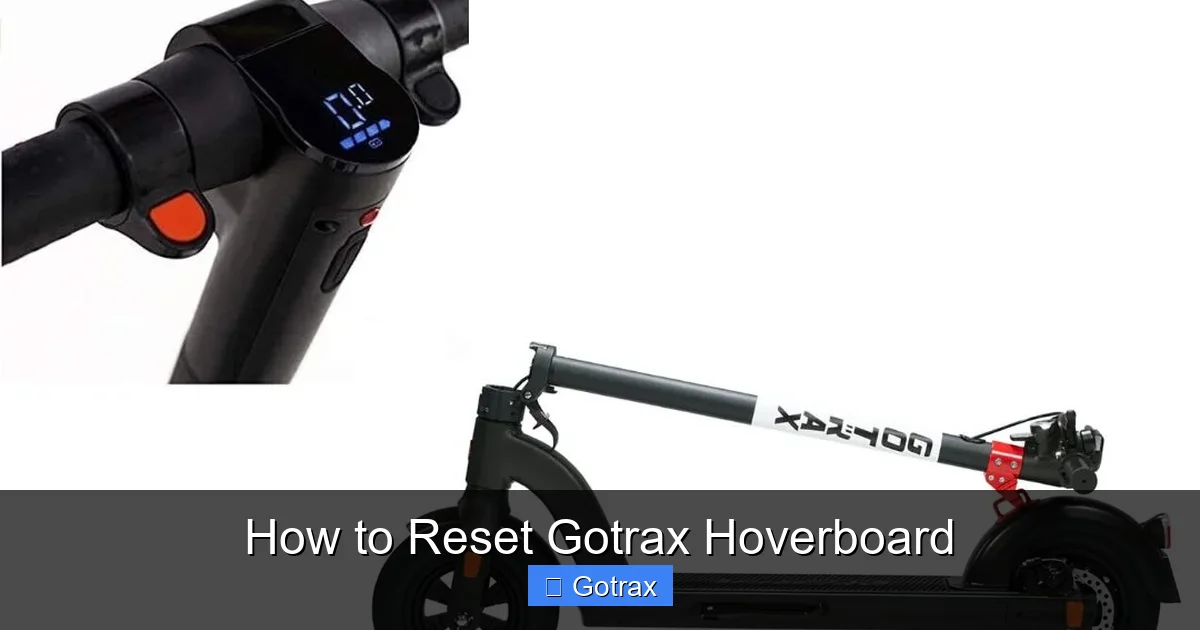
Visual guide about How to Reset Gotrax Hoverboard
Image source: scootertip.com
Before diving into the steps, it’s important to understand why resetting your hoverboard can be so effective. Gotrax hoverboards, like most modern self-balancing scooters, rely on a combination of sensors, gyroscopes, and onboard software to maintain balance and respond to rider input. Over time, these systems can develop minor errors due to bumps, temperature changes, or software hiccups.
A reset essentially reboots the hoverboard’s internal computer, clearing any temporary bugs or misalignments. It’s similar to restarting your smartphone when an app freezes. Common issues that a reset can fix include:
– The hoverboard won’t turn on or respond to the power button
– It beeps continuously or shows error lights
– The wheels spin unexpectedly or don’t respond to leaning
– The board feels unbalanced or drifts to one side
– Charging issues or the battery indicator is inaccurate
In most cases, these problems aren’t due to hardware failure—they’re software-related and can be resolved with a simple reset. However, if your hoverboard has been dropped, exposed to water, or shows physical damage, a reset may not be enough, and you should contact Gotrax support.
When Should You Reset Your Gotrax Hoverboard?
Not every issue requires a reset, but there are clear signs that indicate it’s time to try one. Here are the most common scenarios where a reset is recommended:
Unresponsive Power Button
If pressing the power button does nothing—no lights, no sound, no movement—the hoverboard may be in a frozen state. A reset can唤醒 the system and restore functionality.
Continuous Beeping or Error Lights
Gotrax hoverboards use beeps and LED patterns to signal errors. For example, three beeps might indicate a gyroscope issue, while flashing red lights could mean a battery problem. If the beeping continues even after charging, a reset may clear the error.
Balance or Drifting Issues
If your hoverboard leans to one side, doesn’t stay level, or feels unstable when standing still, the sensors may need recalibration. A reset followed by proper balancing can fix this.
Charging Problems
Sometimes, the hoverboard won’t charge even when plugged in. This could be due to a software glitch in the battery management system. A reset can refresh the connection between the battery and the control board.
After a Firmware Update
If you’ve recently updated your hoverboard’s firmware via the Gotrax app, a reset ensures the new software integrates properly with the hardware.
Post-Crash or Hard Landing
After a fall or hard impact, internal sensors can become misaligned. A reset helps the system re-calibrate and return to normal operation.
What You’ll Need Before Resetting
Resetting your Gotrax hoverboard is simple and doesn’t require any special tools, but there are a few things you should have ready:
- A flat, stable surface: You’ll need to place the hoverboard on level ground during and after the reset.
- Access to a power outlet: Ensure the hoverboard has at least 20% battery. If it’s completely dead, charge it for at least 30 minutes before resetting.
- The original charger: Use the Gotrax-approved charger to avoid compatibility issues.
- A clean, dry environment: Avoid resetting near water, dust, or extreme temperatures.
- Patience: The reset process takes only a few minutes, but you’ll need to wait for the hoverboard to fully reboot and calibrate.
Step-by-Step Guide: How to Reset Your Gotrax Hoverboard
Now that you’re prepared, let’s walk through the reset process. This method works for most Gotrax hoverboard models, including the GXL, G2, G4, and GMAX series. Always refer to your user manual for model-specific instructions, but the general steps are consistent.
Step 1: Power Off the Hoverboard
Before starting the reset, make sure the hoverboard is completely turned off. If it’s on, press and hold the power button for 3–5 seconds until the LED lights turn off and the board shuts down. You should hear a beep or see the lights go dark.
Tip: If the hoverboard won’t turn off normally, wait for the battery to drain slightly or disconnect it from the charger and leave it idle for 10 minutes.
Step 2: Locate the Power Button
The power button is usually located on the top deck of the hoverboard, near the center or slightly toward the rear. It’s a small, circular button that may be labeled or illuminated with an LED.
Step 3: Press and Hold the Power Button
With the hoverboard off, press and hold the power button firmly. Keep holding it for 10 to 15 seconds. You may hear a series of beeps or see the LED lights flash during this time.
Important: Do not release the button too early. If you let go before 10 seconds, the reset may not complete. If you hold it too long (beyond 20 seconds), you might trigger a different mode, such as Bluetooth pairing.
Step 4: Release the Button and Wait
After holding the button for 10–15 seconds, release it. The hoverboard should now begin its reboot sequence. You’ll likely see the LED lights turn on, flash, or cycle through colors. Some models will play a startup sound or beep pattern.
Step 5: Let the Hoverboard Calibrate
Once the lights stabilize, place the hoverboard on a flat, level surface. Make sure it’s not tilted or leaning against a wall. Leave it undisturbed for 30 to 60 seconds. During this time, the internal gyroscopes and sensors will recalibrate.
Tip: Avoid touching or moving the hoverboard during calibration. Even slight pressure can interfere with the sensor alignment.
Step 6: Test the Hoverboard
After calibration, turn the hoverboard on normally by pressing the power button once. Wait for the lights to stabilize and the board to balance itself. Then, gently step on and test basic functions:
– Lean forward and backward to check responsiveness
– Turn left and right to ensure smooth pivoting
– Listen for unusual beeps or vibrations
If everything works smoothly, your reset was successful!
Troubleshooting Common Reset Issues
Sometimes, the reset doesn’t work the first time—or the problem returns shortly after. Here’s how to handle common issues:
The Hoverboard Won’t Turn On After Reset
If the board remains unresponsive after the reset, check the battery. Plug it in and charge for at least 2 hours. A completely drained battery may prevent the reset from completing. Also, inspect the charging port for debris or damage.
Continuous Beeping After Reset
If the hoverboard still beeps after resetting, it may indicate a hardware issue. Refer to the user manual for beep code meanings. For example, repeated beeps could signal a motor fault or sensor failure. In this case, contact Gotrax support.
Drifting or Imbalance Persists
If the hoverboard still drifts to one side, try recalibrating it manually. Turn it off, place it on a flat surface, and hold the power button for 5 seconds until the lights flash. This forces a sensor recalibration.
Reset Doesn’t Fix Charging Issues
If the hoverboard still won’t charge, the problem may be with the charger, battery, or charging port. Try a different outlet or charger. If the issue continues, the battery may need replacement.
Firmware Glitches
Some advanced issues require a firmware update. Download the Gotrax app (available on iOS and Android), connect your hoverboard via Bluetooth, and check for updates. A firmware update can resolve bugs that a simple reset cannot.
Advanced Tips for Maintaining Your Gotrax Hoverboard
Resetting is a great fix, but prevention is even better. Follow these tips to keep your hoverboard running smoothly and reduce the need for resets:
Keep It Clean
Dirt, dust, and moisture can interfere with sensors and electrical connections. Wipe down the deck and wheels regularly with a dry or slightly damp cloth. Avoid spraying water directly on the board.
Store Properly
Store your hoverboard in a cool, dry place away from direct sunlight or extreme temperatures. Avoid leaving it in a hot car or damp garage.
Charge Regularly
Don’t let the battery drop to 0% frequently. Lithium-ion batteries last longer when kept between 20% and 80% charge. Charge after each use, but avoid overcharging.
Avoid Overloading
Stay within the weight limit specified for your model (usually 220–265 lbs). Overloading can strain the motors and sensors, leading to errors.
Update Firmware
Check the Gotrax app periodically for firmware updates. These updates improve performance, fix bugs, and enhance safety features.
Inspect Before Riding
Before each ride, do a quick check: Are the tires inflated? Are the lights working? Is the deck secure? Catching small issues early prevents bigger problems.
When to Contact Gotrax Support
While a reset solves many issues, some problems require professional help. Contact Gotrax customer support if:
– The hoverboard won’t turn on even after a full charge and reset
– You see smoke, burning smells, or hear grinding noises
– The wheels are damaged or won’t spin freely
– The battery swells or leaks
– The hoverboard has been exposed to water or heavy impact
Gotrax offers a limited warranty on most models, so you may be eligible for a repair or replacement. Visit their official website to submit a support ticket or find a service center near you.
Final Thoughts
Resetting your Gotrax hoverboard is a simple yet powerful way to resolve many common issues. Whether your board is unresponsive, beeping, or unbalanced, a quick reset can often restore normal function without the need for professional repair.
By following the steps in this guide—powering off, holding the button, allowing calibration, and testing—you can troubleshoot like a pro. Remember to maintain your hoverboard regularly, keep it charged, and update its firmware to prevent future problems.
With a little care and the right know-how, your Gotrax hoverboard will stay reliable, safe, and fun for years to come. So the next time it acts up, don’t panic—just reset and ride on!