
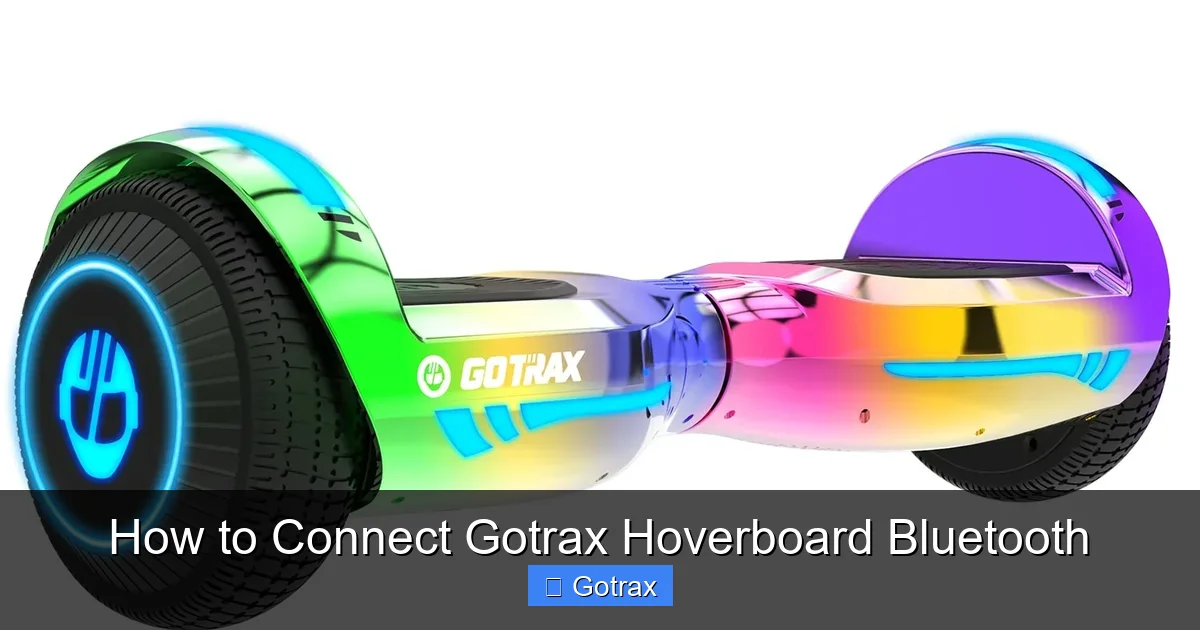
This guide walks you through how to connect Gotrax hoverboard Bluetooth quickly and easily. Whether you’re pairing your device for the first time or reconnecting after an issue, you’ll find clear instructions and helpful tips to ensure a smooth connection every time.
Key Takeaways
- Ensure Bluetooth is enabled: Both your hoverboard and smartphone must have Bluetooth turned on before pairing.
- Download the Gotrax app: The official Gotrax app is required to access Bluetooth features and customize settings.
- Charge your hoverboard: A low battery can prevent Bluetooth from functioning properly—always charge before connecting.
- Reset if needed: If connection fails, try resetting the hoverboard’s Bluetooth module using the power button method.
- Stay within range: Keep your phone within 30 feet of the hoverboard for a stable connection.
- Update firmware: Regular app and firmware updates improve Bluetooth performance and compatibility.
- Use one device at a time: Only one phone can be connected to the hoverboard at once to avoid interference.
How to Connect Gotrax Hoverboard Bluetooth: A Complete Step-by-Step Guide
So, you’ve just unboxed your brand-new Gotrax hoverboard—or maybe you’ve had it for a while but haven’t tapped into its full potential yet. One of the coolest features? The built-in Bluetooth connectivity. With it, you can play music, track your rides, customize speed settings, and even monitor battery life—all from your smartphone. But if you’ve never connected a hoverboard to Bluetooth before, it might seem a little confusing at first.
Don’t worry. This guide will walk you through how to connect Gotrax hoverboard Bluetooth in simple, easy-to-follow steps. Whether you’re a first-time rider or just need a refresher, we’ve got you covered. By the end of this guide, you’ll be cruising with your favorite playlist blasting and your ride stats displayed right on your phone.
We’ll cover everything from initial setup to troubleshooting common issues, so you can enjoy a seamless Bluetooth experience every time you hop on your Gotrax hoverboard.
What You’ll Need Before You Start
Before diving into the connection process, make sure you have the following ready:
- A fully charged Gotrax hoverboard: Bluetooth won’t work if the battery is too low. Aim for at least 50% charge.
- A smartphone with Bluetooth: iOS (iPhone) or Android devices are both compatible.
- The official Gotrax app: Available for free on the App Store (iOS) and Google Play Store (Android).
- A stable environment: Avoid areas with heavy Wi-Fi or Bluetooth interference, like crowded malls or tech-heavy offices.
Having these items ready will save you time and frustration. Let’s get started.
Step 1: Charge Your Gotrax Hoverboard
It might sound obvious, but one of the most common reasons Bluetooth won’t connect is a low battery. Gotrax hoverboards require a minimum charge level to activate Bluetooth functionality.
How to Check the Battery Level
Turn on your hoverboard by pressing and holding the power button for 2–3 seconds. The LED battery indicator on the footpad will light up, showing your current charge level. If only one or two bars are lit, it’s time to charge.
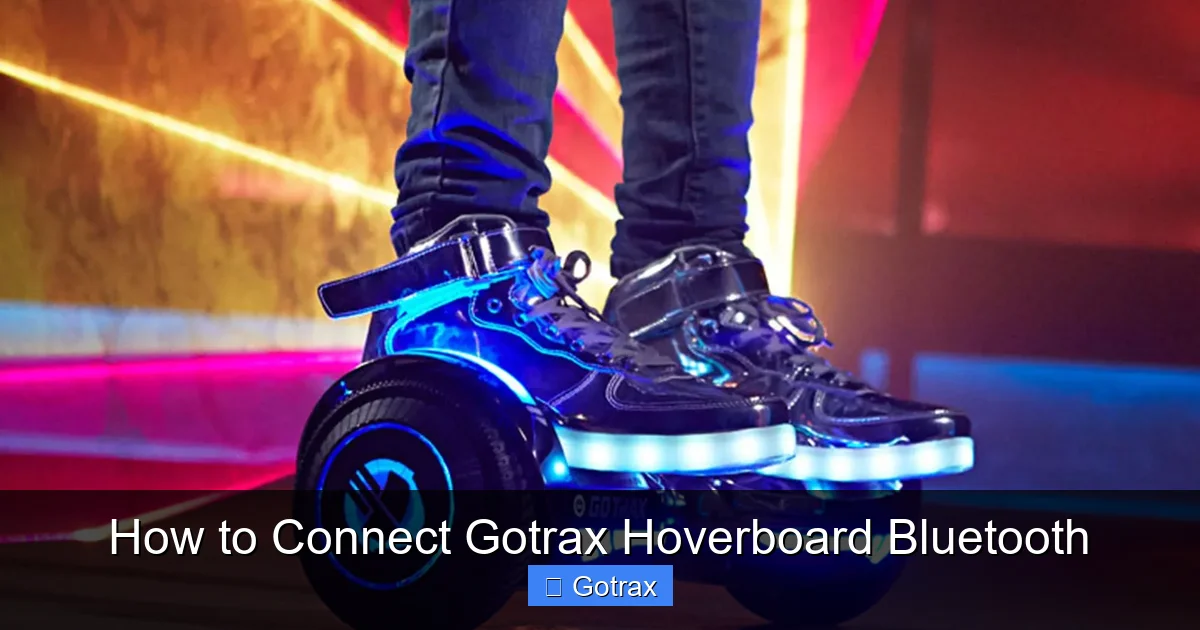
Visual guide about How to Connect Gotrax Hoverboard Bluetooth
Image source: gotrax.com
Charging Tips
- Use only the charger that came with your Gotrax hoverboard.
- Plug the charger into a wall outlet—not a USB port or power strip—for optimal charging speed.
- Charge for at least 3–4 hours for a full battery. Avoid overcharging; unplug once fully charged.
- Never ride with a critically low battery, as it can damage the battery over time.
Once your hoverboard is charged, you’re ready for the next step.
Step 2: Download and Install the Gotrax App
The Gotrax app is your control center for Bluetooth features. It allows you to pair your phone, play music, adjust speed modes, and monitor performance.
Finding the App
Open your phone’s app store:
- For iPhone users: Open the App Store, search “Gotrax,” and download the official app (published by Gotrax LLC).
- For Android users: Open Google Play, search “Gotrax,” and install the app with the Gotrax logo.
Creating an Account (Optional but Recommended)
While you can use the app without an account, creating one lets you save ride data, receive firmware updates, and access customer support. Simply tap “Sign Up” and enter your email and a password.
Granting Permissions
When you first open the app, it will ask for permission to access Bluetooth and location. Allow both—these are necessary for pairing and tracking your rides.
Now that the app is installed and ready, let’s move on to enabling Bluetooth.
Step 3: Enable Bluetooth on Your Smartphone
Your phone’s Bluetooth must be turned on to detect and connect to the hoverboard.
How to Turn On Bluetooth
- iPhone: Swipe down from the top-right corner to open Control Center. Tap the Bluetooth icon (it should turn blue when active).
- Android: Swipe down from the top of the screen to open Quick Settings. Tap the Bluetooth icon to enable it.
Check for Interference
If you’re in a busy area with many Bluetooth devices (like a gym or office), your phone might struggle to find the hoverboard. Try moving to a quieter space or turning off other Bluetooth devices temporarily.
Keep Your Phone Close
Bluetooth has a limited range—usually about 30 feet. Keep your phone within this distance during pairing and use.
With Bluetooth enabled, it’s time to prepare your hoverboard.
Step 4: Turn On Your Gotrax Hoverboard
Now that your phone is ready, power up your hoverboard.
Powering On
Place the hoverboard on a flat, stable surface. Press and hold the power button (located on the side or rear) for 2–3 seconds until the LED lights turn on. You’ll hear a beep or see a light flash, indicating it’s active.
Wait for Bluetooth Activation
After turning on, the hoverboard will automatically enter Bluetooth pairing mode. You’ll know it’s ready when the Bluetooth indicator (usually a blue or white LED) starts blinking rapidly.
What If the Light Isn’t Blinking?
If the Bluetooth light is solid or off, your hoverboard may not be in pairing mode. Try turning it off and on again. If that doesn’t work, proceed to the troubleshooting section later in this guide.
Now that both devices are on and ready, let’s open the app and start pairing.
Step 5: Open the Gotrax App and Start Pairing
This is where the magic happens. The app will search for your hoverboard and establish a secure connection.
Launch the App
Open the Gotrax app on your phone. If you’re not already logged in, do so now. The home screen should display options like “Connect Device,” “Ride Stats,” and “Settings.”
Tap “Connect Device”
Tap the “Connect Device” or “Pair Hoverboard” button. The app will begin scanning for nearby Gotrax devices with Bluetooth enabled.
Select Your Hoverboard
Within a few seconds, your hoverboard should appear in the list—usually labeled as “Gotrax Hoverboard” or a model name like “GXL V2.” Tap on it to initiate pairing.
Confirm the Connection
Your phone may show a pop-up asking to confirm the pairing. Tap “Pair” or “Connect.” The app will display a success message once connected.
Test the Connection
Try playing music through the app or checking the battery level. If everything works, you’re all set!
Step 6: Customize Your Bluetooth Experience
Now that you’re connected, take advantage of the app’s features to enhance your ride.
Play Music via Bluetooth
The Gotrax app lets you stream music directly from your phone to the hoverboard’s built-in speakers. Open your favorite music app (Spotify, Apple Music, etc.), select a song, and play it. The sound will come through the hoverboard’s speakers.
Adjust Speed and Riding Modes
Use the app to switch between riding modes—like Beginner, Normal, or Sport. This is great for new riders who want to start slow.
Monitor Battery and Distance
The app displays real-time battery percentage, distance traveled, and average speed. Use this data to plan your rides and avoid running out of power.
Set Ride Alerts
Enable notifications for low battery, speed limits, or maintenance reminders. These help keep your hoverboard in top condition.
Update Firmware (If Available)
Gotrax occasionally releases firmware updates to improve performance and fix bugs. Check the “Settings” or “Device Info” section in the app for updates. Always update when prompted.
Troubleshooting Common Bluetooth Connection Issues
Even with the best setup, sometimes things don’t go as planned. Here’s how to fix the most common problems when connecting your Gotrax hoverboard Bluetooth.
Hoverboard Not Showing Up in the App
If your hoverboard doesn’t appear in the app’s device list, try these steps:
- Make sure the hoverboard is powered on and the Bluetooth light is blinking.
- Restart both the hoverboard and your phone.
- Move closer to the hoverboard—Bluetooth range is limited.
- Close and reopen the Gotrax app.
- Ensure no other device is already connected to the hoverboard.
Bluetooth Connects but Disconnects Frequently
Intermittent disconnections can be frustrating. Here’s how to fix it:
- Keep your phone within 30 feet of the hoverboard.
- Avoid areas with strong Wi-Fi or Bluetooth signals (like near routers or microwaves).
- Close background apps that use Bluetooth (like fitness trackers or smartwatches).
- Update the Gotrax app and hoverboard firmware.
Music Won’t Play Through the Hoverboard
If you’re connected but no sound comes out:
- Check the volume on both your phone and the hoverboard.
- Ensure the music app is set to play through Bluetooth (not phone speakers).
- Re-pair the devices and try again.
- Test with a different song or app to rule out file issues.
Bluetooth Light Won’t Blink
If the Bluetooth indicator stays solid or off:
- Turn the hoverboard off and on again.
- Perform a Bluetooth reset: Press and hold the power button for 10–15 seconds until the lights flash rapidly, then release. This resets the Bluetooth module.
- Charge the hoverboard fully—low battery can disable Bluetooth.
App Crashes or Freezes During Pairing
If the Gotrax app becomes unresponsive:
- Force-close the app and reopen it.
- Restart your phone.
- Reinstall the app if the problem persists.
- Check for app updates in your device’s app store.
Tips for a Smooth Bluetooth Experience
To get the most out of your Gotrax hoverboard’s Bluetooth features, follow these best practices:
- Pair once, reconnect automatically: After the first successful pairing, your phone should reconnect automatically when both devices are on and in range.
- Keep the app updated: Developers release updates to fix bugs and improve performance. Enable auto-updates if possible.
- Avoid extreme temperatures: Cold or hot environments can affect Bluetooth performance. Store and ride in moderate conditions.
- Clean the hoverboard regularly: Dust and dirt can interfere with sensors and speakers. Wipe down the footpad and speakers with a dry cloth.
- Use a protective case for your phone: This prevents damage if you drop your phone while riding.
- Don’t overload the Bluetooth connection: Only one phone can be connected at a time. Disconnect before letting someone else pair their device.
Why Bluetooth Matters for Your Gotrax Hoverboard
You might be wondering—why bother with Bluetooth at all? After all, you can ride just fine without it. But Bluetooth unlocks a whole new level of fun and functionality.
Imagine cruising down the sidewalk with your favorite playlist pumping through the hoverboard’s speakers. Or checking your speed and battery life without pulling out your phone. With Bluetooth, your hoverboard becomes more than just a ride—it becomes a smart, connected experience.
Plus, the Gotrax app adds safety features like speed limits and ride tracking, which are especially helpful for younger riders or parents monitoring usage.
In short, connecting Bluetooth isn’t just convenient—it’s a game-changer.
Final Thoughts: Enjoy Your Connected Ride
Connecting your Gotrax hoverboard Bluetooth is easier than it looks. With the right preparation and a few simple steps, you can enjoy music, track your rides, and customize your experience—all from your smartphone.
Remember to charge your hoverboard, download the Gotrax app, enable Bluetooth, and follow the pairing process carefully. If you run into issues, don’t panic—most problems can be fixed with a restart or reset.
Now that you know how to connect Gotrax hoverboard Bluetooth, it’s time to hit the pavement and enjoy everything your hoverboard has to offer. Whether you’re commuting, cruising with friends, or just having fun, Bluetooth makes the ride better.
So power up, pair up, and ride on!