
Connecting your Gotrax scooter to Bluetooth lets you access speed settings, battery life, and ride tracking through the official app. This guide walks you through the entire process—from downloading the app to troubleshooting common issues—so you can start riding with full control and convenience.
Key Takeaways
- Download the Gotrax app from the App Store or Google Play before attempting to connect.
- Ensure your scooter is powered on and within 30 feet of your smartphone for a stable Bluetooth connection.
- Enable Bluetooth on your phone and keep it active throughout the pairing process.
- Follow the in-app pairing instructions carefully—timing and sequence matter for successful connection.
- Restart both devices if pairing fails—this resolves most common connectivity issues.
- Keep your app and firmware updated to avoid compatibility problems and enjoy new features.
- Use the app to customize ride modes, check battery health, and track your trips for a smarter riding experience.
How to Connect Gotrax Scooter Bluetooth: A Complete Step-by-Step Guide
So, you’ve got your shiny new Gotrax scooter—or maybe you’ve had it for a while and just haven’t tapped into its full potential yet. One of the coolest features? Bluetooth connectivity. Yes, your Gotrax scooter can talk to your phone. And when it does, you unlock a whole new level of control, convenience, and fun.
In this guide, we’ll walk you through exactly how to connect Gotrax scooter Bluetooth—no tech degree required. Whether you’re a first-time rider or a seasoned commuter, this step-by-step tutorial will help you pair your scooter with the Gotrax app in just a few minutes. You’ll learn how to download the app, enable Bluetooth, sync your devices, and troubleshoot any hiccups along the way.
By the end of this guide, you’ll be able to check your battery level, adjust speed settings, track your rides, and even lock your scooter remotely—all from your smartphone. Let’s get started!
Why Connect Your Gotrax Scooter to Bluetooth?
Before we dive into the how-to, let’s talk about why you’d want to connect your Gotrax scooter to Bluetooth in the first place. It’s not just a fancy trick—it’s a practical upgrade that enhances your entire riding experience.
First, the Gotrax app gives you real-time access to your scooter’s vital stats. You can see your current speed, battery percentage, and total distance traveled. No more guessing if you’ve got enough juice to make it home.
Second, you can customize your ride. Many Gotrax models let you switch between different speed modes—Eco, Normal, and Sport—right from the app. Want a smoother, slower ride for cruising around the neighborhood? Switch to Eco. Need a little extra zip for your commute? Flip to Sport mode.
Third, the app offers ride tracking and history. It logs your trips, so you can see how far you’ve gone, how long you rode, and even your average speed. Great for fitness tracking or just satisfying your inner data nerd.
And finally, some models support remote locking. That means you can lock your scooter through the app, adding an extra layer of security when you’re parked in a busy area.
In short, connecting your Gotrax scooter to Bluetooth turns a simple ride into a smart, connected experience. So let’s make it happen.
What You’ll Need Before You Start
Before we begin the pairing process, make sure you have everything you need. Don’t worry—it’s not complicated. Here’s a quick checklist:
- A compatible Gotrax scooter – Most newer models (like the GXL V2, G4, GMAX, and EPrime series) support Bluetooth. Check your user manual or the Gotrax website to confirm.
- A smartphone – Either an iPhone (iOS 11 or later) or an Android device (Android 6.0 or later).
- The Gotrax app – Available for free on the App Store and Google Play.
- Bluetooth enabled on your phone – Make sure it’s turned on and working.
- Your scooter powered on – The battery should be charged enough to turn on the display.
- A stable environment – Try to pair in a quiet area with minimal Bluetooth interference (like away from other scooters, speakers, or crowded Wi-Fi zones).
Once you’ve got all that, you’re ready to connect.
Step 1: Download the Gotrax App
The first step in connecting your Gotrax scooter to Bluetooth is downloading the official app. This app is your control center—it’s where you’ll pair your scooter, adjust settings, and view ride data.
For iPhone Users
Open the App Store on your iPhone. Tap the search icon and type “Gotrax” in the search bar. Look for the app published by “Gotrax LLC”—it should have a blue and white icon with the Gotrax logo. Tap “Get” to download and install it. Once installed, open the app.
Visual guide about How to Connect Gotrax Scooter Bluetooth
Image source: safetyfic.com
For Android Users
Open the Google Play Store on your Android device. Search for “Gotrax” and select the official app (again, published by Gotrax LLC). Tap “Install” and wait for it to download. Once done, open the app.
Create an Account (If Required)
The first time you open the app, you may be prompted to create a free account. This isn’t always necessary just to pair your scooter, but it’s recommended if you want to save ride history, receive updates, or access customer support. Simply enter your email, create a password, and verify your account if needed.
Grant Permissions
The app may ask for permission to access your phone’s Bluetooth and location services. Tap “Allow” or “OK” when prompted. These permissions are essential for the app to detect and connect to your scooter.
Now that the app is installed and ready, let’s move on to the next step.
Step 2: Power On Your Gotrax Scooter
Before your phone can find your scooter, the scooter needs to be awake and broadcasting its Bluetooth signal.
Turn On the Scooter
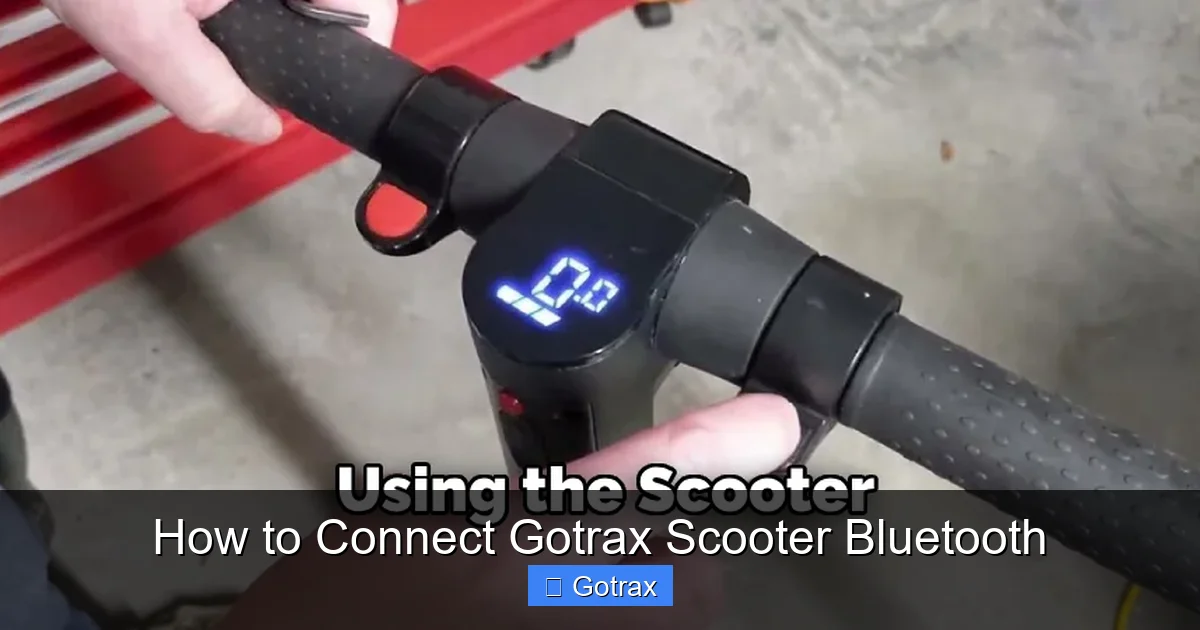
Press and hold the power button on your Gotrax scooter for 2–3 seconds until the display lights up. You should see the battery indicator, speedometer, and possibly a Bluetooth icon (depending on the model). If the scooter doesn’t turn on, charge it for at least 30 minutes and try again.
Check the Bluetooth Indicator
Some Gotrax models display a small Bluetooth symbol on the screen when Bluetooth is active. If you don’t see it, don’t panic—your scooter may still be discoverable. The app will handle the detection.
Ensure the Scooter Is in Pairing Mode
Most Gotrax scooters automatically enter pairing mode when powered on and not previously connected. However, if your scooter was previously paired to another device, you may need to reset the Bluetooth connection. We’ll cover that in the troubleshooting section later.
Keep the Scooter Near Your Phone
Bluetooth has a limited range—usually about 30 feet. Keep your scooter within this distance while pairing. Avoid placing it behind walls, in another room, or inside a metal enclosure (like a car trunk), as these can block the signal.
Once your scooter is on and ready, it’s time to open the app and start the pairing process.
Step 3: Enable Bluetooth on Your Phone
Your phone’s Bluetooth must be turned on for the app to detect your scooter. Here’s how to make sure it’s active.
On iPhone
Swipe down from the top-right corner of your screen (or up from the bottom on older models) to open the Control Center. Look for the Bluetooth icon—it should be blue and highlighted. If it’s gray, tap it to turn it on. Alternatively, go to Settings > Bluetooth and toggle it on.
On Android
Swipe down from the top of your screen to open the Quick Settings panel. Tap the Bluetooth icon to turn it on (it should light up). Or go to Settings > Connected devices > Connection preferences > Bluetooth and toggle it on.
Check for Interference
If you’re in a crowded area—like a mall, airport, or busy street—other Bluetooth devices might interfere with the connection. Try moving to a quieter spot or turning off other Bluetooth devices nearby (like wireless headphones or smartwatches).
Restart Bluetooth if Needed
If your phone’s Bluetooth seems sluggish or unresponsive, turn it off and back on. This refreshes the connection and often resolves minor glitches.
With Bluetooth active, your phone is now ready to search for your scooter.
Step 4: Open the Gotrax App and Start Pairing
Now comes the fun part—connecting your scooter to the app.
Launch the Gotrax App
Open the app on your phone. If you’re not already logged in, do so now. You should see a home screen with options like “Connect Scooter,” “Ride History,” or “Settings.”
Tap “Connect Scooter” or “Add Device”
Look for a button that says “Connect Scooter,” “Pair Device,” or “Add New Scooter.” Tap it. The app will begin scanning for nearby Gotrax scooters with active Bluetooth.
Wait for Your Scooter to Appear
This may take 10–30 seconds. Be patient—the app is searching for Bluetooth signals and filtering out non-Gotrax devices. You should see a list of available scooters. Look for your model name (e.g., “Gotrax G4” or “Gotrax GXL V2”).
Select Your Scooter
Tap on your scooter’s name when it appears. The app will attempt to establish a connection. You may see a loading spinner or a “Connecting…” message.
Confirm the Connection
If successful, you’ll see a confirmation message like “Connected!” or “Scooter Paired.” The app may also display your scooter’s current battery level and speed mode.
Test the Connection
Try adjusting the speed mode in the app (if your model supports it). If the scooter responds, you’re all set! You can also check the battery percentage to confirm the data is syncing.
Congratulations—you’ve successfully connected your Gotrax scooter to Bluetooth!
Step 5: Explore the App Features
Now that you’re connected, let’s take a tour of what the Gotrax app can do.
Dashboard Overview
The main screen shows your scooter’s real-time status: battery level, current speed, and total mileage. Some models also show trip distance and ride time.
Speed Mode Control
Tap the “Mode” button to switch between Eco, Normal, and Sport. Eco mode conserves battery and limits top speed. Sport mode unlocks maximum performance. This is great for adapting to different riding conditions.
Ride Tracking
Every time you ride, the app logs your trip. You can view past rides, see maps of your routes (if GPS is enabled), and track your progress over time. Perfect for fitness goals or just seeing how much you’ve explored.
Battery Health Monitoring
The app gives you more detailed battery info than the scooter’s display. You’ll see estimated range, charging status, and battery temperature. This helps you avoid unexpected shutdowns.
Remote Lock (If Supported)
On select models, you can lock your scooter through the app. This disables the motor, so no one can ride it without unlocking it first. Tap the lock icon to secure your scooter when parked.
Firmware Updates
The app may notify you when a firmware update is available. These updates improve performance, fix bugs, and sometimes add new features. Always keep your scooter’s firmware up to date for the best experience.
Customer Support
Need help? The app includes a support section with FAQs, contact options, and troubleshooting guides. You can even submit a support ticket directly from the app.
Take some time to explore these features. The more you use the app, the more value you’ll get from your Gotrax scooter.
Troubleshooting Common Bluetooth Connection Issues
Even with the best setup, sometimes things don’t go as planned. Here are some common problems and how to fix them.
Scooter Not Showing Up in the App
If your scooter doesn’t appear in the app’s device list, try these steps:
- Make sure the scooter is powered on and within 30 feet.
- Restart the scooter by turning it off and on again.
- Close and reopen the Gotrax app.
- Toggle Bluetooth off and on your phone.
- Move to a different location with less interference.
If it still doesn’t show up, your scooter may need a Bluetooth reset.
Bluetooth Pairing Fails or Disconnects
If the app says “Connection Failed” or the scooter disconnects frequently:
- Ensure your phone’s Bluetooth is stable—avoid low battery or poor signal areas.
- Check for app updates in the App Store or Google Play.
- Update your scooter’s firmware through the app (if available).
- Forget the scooter in your phone’s Bluetooth settings and re-pair.
Sometimes, simply restarting both devices solves the issue.
App Crashes or Freezes
If the Gotrax app keeps crashing:
- Force close the app and reopen it.
- Clear the app’s cache (on Android: Settings > Apps > Gotrax > Storage > Clear Cache).
- Reinstall the app if problems persist.
- Make sure your phone’s operating system is up to date.
App stability improves with regular updates, so keep everything current.
Previously Paired to Another Device
If your scooter was connected to another phone, it may not show up for your device. To fix this:
- On the original phone, open the Gotrax app and disconnect the scooter.
- Or, reset the scooter’s Bluetooth by holding the power button for 10+ seconds (check your manual for exact steps).
- Then try pairing again with your phone.
This clears the old connection and allows a new one.
Weak or Intermittent Signal
If the connection drops often:
- Keep your phone in your pocket or a handlebar mount while riding.
- Avoid riding near strong Wi-Fi routers, microwaves, or other Bluetooth devices.
- Ensure your phone case isn’t blocking the Bluetooth antenna (some thick cases can interfere).
A stable connection makes for a smoother app experience.
Firmware Update Needed
If the app says your scooter needs a firmware update:
- Connect your scooter to the app while it’s charged above 50%.
- Follow the in-app instructions to download and install the update.
- Do not turn off the scooter during the update—it could cause damage.
Firmware updates often fix Bluetooth bugs and improve performance.
Don’t let these issues discourage you. Most Bluetooth problems are easy to fix with a little patience.
Tips for a Smooth Bluetooth Experience
Want to get the most out of your Gotrax scooter’s Bluetooth connection? Here are some pro tips:
- Keep your app updated – New versions often include bug fixes and new features.
- Charge your scooter regularly – Low battery can weaken Bluetooth performance.
- Use a phone mount – This keeps your phone close and makes it easy to check the app while riding.
- Pair in a quiet environment – Avoid crowded areas when first connecting.
- Restart devices weekly – A quick reboot of your phone and scooter can prevent glitches.
- Check for interference – Turn off unused Bluetooth devices nearby.
- Read the manual – Your specific Gotrax model may have unique pairing steps.
These small habits go a long way in keeping your connection strong and your rides smooth.
Conclusion
Connecting your Gotrax scooter to Bluetooth is a simple process that opens up a world of smart features. From customizing your ride mode to tracking your trips and monitoring battery health, the Gotrax app transforms your scooter into a connected, intelligent ride.
By following this guide—downloading the app, powering on your scooter, enabling Bluetooth, and pairing through the app—you’ll be up and running in minutes. And if you run into any issues, the troubleshooting tips above will help you get back on track.
So go ahead, pair your scooter, and start riding smarter. Whether you’re commuting, exploring, or just having fun, Bluetooth connectivity makes every ride better.
Happy riding!