
Switching your Gotrax scooter from kilometers per hour (km/h) to miles per hour (mph) is easier than you think. This guide walks you through the process for various Gotrax models, ensuring accurate speed readings for a safer, more intuitive ride.
Key Takeaways
- Most Gotrax scooters allow unit switching via the display panel – no tools or apps required.
- Check your model first – not all Gotrax scooters support mph; older or entry-level models may only display km/h.
- Use the power button and mode button combo – this is the standard method for changing units on compatible models.
- Always test after changing settings – ride slowly to confirm the display shows mph correctly.
- Update firmware if needed – some newer models require a Bluetooth app update to enable mph.
- Know your local laws – mph is standard in the U.S., but double-check regulations for electric scooters in your area.
- Reset to factory settings if issues occur – a quick reset can fix display glitches after unit changes.
How to Change Gotrax Scooter to Mph: A Complete Step-by-Step Guide
If you’re a Gotrax scooter owner in the United States or another country that uses miles per hour (mph), you’ve probably noticed that many Gotrax models default to kilometers per hour (km/h). While this isn’t a dealbreaker, seeing your speed in mph makes riding more intuitive—especially if you’re used to U.S. road signs, speed limits, and general driving habits. The good news? Changing your Gotrax scooter from km/h to mph is usually quick, easy, and doesn’t require any special tools or technical skills.
In this comprehensive guide, we’ll walk you through everything you need to know about switching your Gotrax scooter’s speed unit from kilometers per hour to miles per hour. Whether you ride a Gotrax GXL, G4, G3, G2, or a newer model like the G Max or G Ultra, this guide covers the most common methods, troubleshooting tips, and model-specific instructions. By the end, you’ll be confidently cruising with accurate mph readings on your display.
We’ll also explain why this change matters, how to verify your scooter supports mph, and what to do if the standard method doesn’t work. So grab your scooter, find a safe spot to test it, and let’s get started!
Why Change Your Gotrax Scooter to Mph?
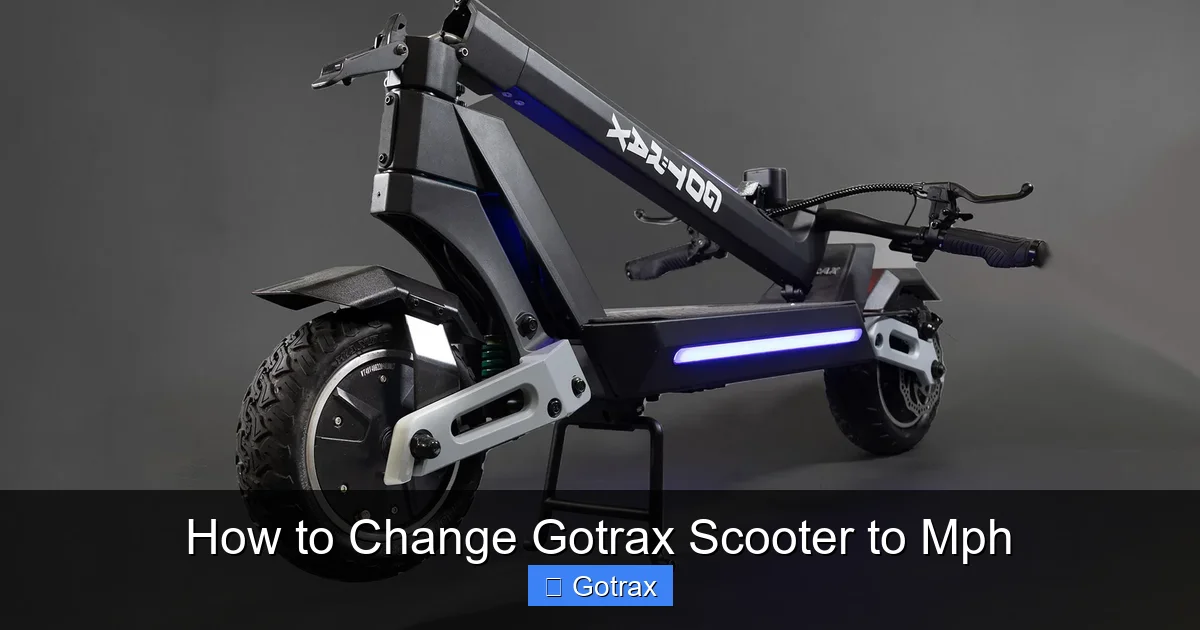
Visual guide about How to Change Gotrax Scooter to Mph
Image source: cdn.shopify.com
Before diving into the how-to, let’s talk about why you might want to make this change. For many riders, especially those in the U.S., Canada (where mph is also used on roads), and parts of the Caribbean, mph is the standard unit of speed. Here are a few key reasons to switch:
- Safety and Awareness: When you’re riding in traffic or on shared paths, knowing your speed in mph helps you stay within legal limits and match the flow of other vehicles.
- Better Ride Control: If you’re used to thinking in miles per hour, seeing km/h can be confusing. Switching to mph gives you a clearer sense of how fast you’re going.
- Consistency with Other Devices: Your car, bike computer, or fitness tracker likely uses mph. Keeping your scooter in sync makes tracking your rides easier.
- Compliance with Local Laws: Some cities require e-scooters to display speed in mph, especially if they’re used on public roads.
Even if your scooter technically works fine in km/h, switching to mph enhances your overall riding experience. It’s a small change with a big impact on usability.
Does Your Gotrax Scooter Support Mph?
Not all Gotrax scooters can display speed in mph. While most modern models do support unit switching, older or budget-friendly versions may be locked to km/h. Here’s how to check:
Check the Display
Turn on your scooter and look at the digital display. If you see a “km/h” symbol, your scooter is currently set to kilometers. If it shows “mph,” you’re already good to go. If there’s no unit label, it may still be in km/h by default.
Review the User Manual
The easiest way to confirm compatibility is to check your scooter’s user manual. Look for a section on “Display Settings” or “Unit Selection.” Most Gotrax models from the G2 onward support mph, but earlier versions like the original Gotrax XR may not.
Model-Specific Support
Here’s a quick breakdown of common Gotrax models and their mph support:
- Gotrax GXL V2: Yes – supports mph via button combo.
- Gotrax G4: Yes – supports mph and can be changed via display or app.
- Gotrax G3: Yes – supports mph with button method.
- Gotrax G2: Yes – supports mph.
- Gotrax G Max: Yes – supports mph and app control.
- Gotrax G Ultra: Yes – supports mph via app or buttons.
- Gotrax XR (Original): No – typically locked to km/h.
- Gotrax Apex: Yes – supports mph.
If your model isn’t listed or you’re unsure, try the steps below. If they don’t work, your scooter may not support mph.
Method 1: Change Gotrax Scooter to Mph Using the Display Buttons (Most Common)
This is the standard method for most Gotrax scooters. It uses the power and mode buttons on the handlebar display. Here’s how to do it step by step.
Step 1: Turn On Your Scooter
Press and hold the power button (usually located on the left handlebar) for 2–3 seconds until the display lights up. Wait for the startup sequence to complete.
Step 2: Locate the Mode Button
The mode button is typically a small button next to the power button or on the side of the display. It’s often labeled “M” or “Mode.” This button cycles through different display modes like speed, battery, and trip distance.
Step 3: Enter Settings Mode
With the scooter on, press and hold both the power button and the mode button simultaneously for about 5–7 seconds. You’ll know you’ve entered settings mode when the display changes—usually showing a blinking number or a settings icon.
Step 4: Navigate to Unit Settings
Once in settings mode, press the mode button repeatedly to cycle through options. Look for a setting labeled “Unit,” “km/h/mph,” or a similar indicator. The display may show “km” or “mph” with a blinking cursor.
Step 5: Switch to Mph
When you reach the unit setting, press the power button to toggle between km/h and mph. Select “mph” and wait for the setting to save automatically (usually after 3–5 seconds).
Step 6: Exit Settings Mode
Press and hold the power button again for 2–3 seconds to exit settings mode. The display should return to normal, now showing speed in mph.
Step 7: Test the Change
Take your scooter for a short test ride. Accelerate gently and confirm that the speed display now shows numbers in mph (e.g., 10 mph instead of 16 km/h). If it works, you’re all set!
Method 2: Change Gotrax Scooter to Mph Using the Gotrax App (For App-Enabled Models)
Some newer Gotrax models—like the G4, G Max, and G Ultra—come with Bluetooth connectivity and a companion app. If your scooter supports the Gotrax app, you can change the speed unit directly from your smartphone.
Step 1: Download the Gotrax App
Search for “Gotrax” in the Apple App Store or Google Play Store and download the official app. Make sure it’s the one developed by Gotrax, not a third-party clone.
Step 2: Create an Account or Log In
Open the app and create a free account using your email or social login. This allows you to save settings and track your rides.
Step 3: Pair Your Scooter
Turn on your scooter and enable Bluetooth on your phone. In the app, tap “Add Device” or “Connect Scooter.” Follow the on-screen instructions to pair your scooter. You may need to enter a PIN (often 0000 or 1234).
Step 4: Access Settings
Once connected, tap on your scooter’s name in the app. Look for a “Settings” or “Preferences” tab.
Step 5: Change Speed Unit to Mph
In the settings menu, find the “Speed Unit” or “Display Unit” option. Toggle it from “km/h” to “mph.” The change should sync to your scooter within a few seconds.
Step 6: Confirm on the Display
Check your scooter’s display to ensure it now shows mph. Take a short ride to verify the change.
Pro Tip:
The app also lets you track speed, battery life, and distance. You can even lock your scooter remotely or view ride history—great for security and fitness tracking.
Method 3: Firmware Update (For Persistent Issues)
If the button method or app method doesn’t work, your scooter’s firmware might need an update. Firmware is the internal software that controls your scooter’s functions, including display settings.
Why Update Firmware?
Sometimes, older firmware versions don’t support mph or have bugs that prevent unit changes. Updating ensures your scooter has the latest features and fixes.
How to Update Gotrax Firmware
- Download the Gotrax app (if not already installed).
- Connect your scooter via Bluetooth.
- Go to “Device Info” or “Firmware Update” in the app.
- If an update is available, tap “Update” and wait for the process to complete.
- Do not turn off the scooter during the update.
- Once done, restart the scooter and try changing the unit again.
Firmware updates usually take 2–5 minutes. After updating, the mph option should be available.
Troubleshooting: What to Do If You Can’t Change to Mph
Sometimes, despite following the steps, your Gotrax scooter won’t switch to mph. Here are common issues and how to fix them.
Issue 1: Buttons Don’t Respond
If pressing the power and mode buttons doesn’t enter settings mode:
- Make sure the scooter is fully powered on.
- Try holding the buttons longer (up to 10 seconds).
- Check for dirt or debris around the buttons—clean gently with a dry cloth.
- Restart the scooter and try again.
Issue 2: Display Shows Error or Freezes
If the screen glitches or shows an error code:
- Turn off the scooter and wait 30 seconds before turning it back on.
- Perform a factory reset (see below).
- Ensure the battery is above 20%—low power can cause display issues.
Issue 3: App Won’t Connect
If the Gotrax app can’t find your scooter:
- Make sure Bluetooth is enabled on your phone.
- Restart both the app and your phone.
- Move closer to the scooter (within 10 feet).
- Forget the device in your phone’s Bluetooth settings and re-pair.
Issue 4: Scooter Only Shows km/h (No Mph Option)
If you’ve tried everything and mph still isn’t available:
- Your model may not support mph (common with older scooters).
- Contact Gotrax customer support with your model number and serial number.
- Consider using a third-party speedometer app on your phone as a workaround.
How to Factory Reset Your Gotrax Scooter
A factory reset can fix stubborn display issues. Here’s how:
- Turn off the scooter.
- Press and hold the power button and mode button for 15–20 seconds.
- The display should flash or turn off completely.
- Release the buttons and turn the scooter back on.
- The scooter will restart with default settings.
- Try changing the unit to mph again.
Note: A factory reset will erase trip data and custom settings, but it won’t affect performance.
Safety Tips When Changing Settings
While changing your scooter’s speed unit is safe, it’s important to do it responsibly:
- Always make changes while the scooter is off or stationary. Never adjust settings while riding.
- Test in a safe, open area. After changing to mph, ride slowly in a parking lot or quiet street to confirm the display is accurate.
- Double-check speed limits. Just because your scooter shows mph doesn’t mean you can go faster. Follow local e-scooter laws.
- Keep your firmware updated. Regular updates improve safety and performance.
Final Thoughts: Enjoy Your Ride in Mph
Changing your Gotrax scooter from km/h to mph is a simple but valuable upgrade—especially if you ride in the U.S. or other mph-using regions. With just a few button presses or a quick app adjustment, you can make your scooter feel more familiar and intuitive.
Whether you use the button method, the Gotrax app, or a firmware update, the process is designed to be user-friendly. And if you run into issues, the troubleshooting tips above should help you get back on track.
Remember, the goal isn’t just to see numbers in mph—it’s to ride smarter, safer, and more confidently. So take a moment to switch your unit, test it out, and enjoy the ride with peace of mind.
Now that you know how to change your Gotrax scooter to mph, you’re ready to hit the streets with clarity and control. Happy scooting!