
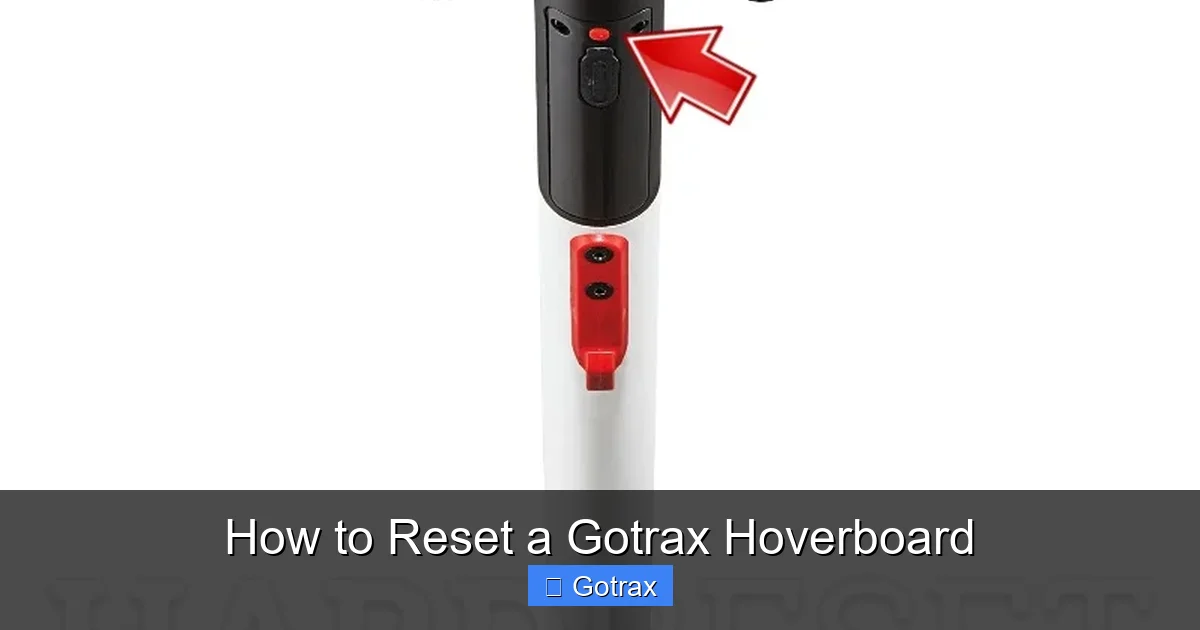
Resetting your Gotrax hoverboard can solve common issues like unresponsiveness, error codes, or balance problems. This guide walks you through the process simply and safely, helping you get back to riding fast.
Key Takeaways
- Resetting fixes many common issues: A simple reset can resolve unresponsiveness, calibration errors, and unexpected shutdowns without needing professional help.
- Always power off before resetting: For safety and effectiveness, turn off your hoverboard completely before starting the reset process.
- Use the correct button combination: Most Gotrax models require holding the power button for 10–15 seconds to trigger a hard reset.
- Calibrate after resetting: After a reset, place your hoverboard on a flat surface and let it recalibrate to ensure smooth operation.
- Check battery and connections: Low battery or loose parts can mimic reset issues—always inspect these first.
- Update firmware if available: Some newer Gotrax models support firmware updates via the app, which can prevent future problems.
- Contact support if problems persist: If resetting doesn’t work, reach out to Gotrax customer service for troubleshooting or warranty assistance.
How to Reset a Gotrax Hoverboard: A Complete Step-by-Step Guide
Gotrax hoverboards are popular for their smooth rides, sleek design, and user-friendly features. But like any electronic device, they can sometimes act up—freezing, beeping, not responding to controls, or showing error lights. When that happens, one of the most effective and simplest fixes is to reset your Gotrax hoverboard.
In this guide, you’ll learn exactly how to reset a Gotrax hoverboard safely and effectively. Whether you’re dealing with a glitchy ride, a calibration error, or just want to restore factory settings, this step-by-step walkthrough will help you get your hoverboard back in working order. We’ll cover different reset methods, troubleshooting tips, and best practices to keep your board running smoothly for years to come.
Why Reset Your Gotrax Hoverboard?
Before diving into the how-to, it’s helpful to understand why resetting your hoverboard can be so useful. Over time, hoverboards can develop software glitches, sensor misalignments, or memory errors that affect performance. These issues might show up as:
Visual guide about How to Reset a Gotrax Hoverboard
Image source: ridereview.com
- The hoverboard won’t turn on
- It beeps continuously or shows flashing lights
- The wheels don’t respond to leaning
- It shuts down unexpectedly
- It drifts or feels unbalanced
A reset clears temporary software errors and restores the board’s default settings. It’s like restarting your phone when an app freezes—simple, but often surprisingly effective. In many cases, a reset can fix the problem without needing to open the board or contact customer support.
What You’ll Need
Resetting a Gotrax hoverboard doesn’t require special tools or technical skills. Here’s what you’ll need:
- A fully charged Gotrax hoverboard (or at least 20% battery)
- A flat, stable surface (like a table or the floor)
- A dry, clean environment (avoid water or dust)
- About 5–10 minutes of your time
Make sure your hoverboard is clean and free of debris, especially around the wheels and sensors. Dirt or moisture can interfere with the reset process or cause further issues.
Step-by-Step: How to Reset a Gotrax Hoverboard
Now, let’s walk through the most reliable method for resetting your Gotrax hoverboard. This process works for most models, including the Gotrax GXL, G2, G3, G4, and newer versions. Always follow these steps carefully to avoid damaging your board.
Step 1: Power Off the Hoverboard
The first and most important step is to turn off your hoverboard completely. Do not skip this—resetting while the board is on can cause errors or damage the internal system.
- Press and hold the power button for 3–5 seconds until the lights turn off.
- Wait about 10 seconds to ensure the board is fully powered down.
- If your hoverboard has a physical power switch (on some older models), flip it to the “off” position.
💡 Pro Tip: If your hoverboard won’t turn off normally, try holding the power button for 10–15 seconds. This forces a shutdown and is safe to do occasionally.
Step 2: Perform a Hard Reset
With the hoverboard off, it’s time to trigger the reset. This is done by holding the power button for an extended period.
- Press and hold the power button for 10 to 15 seconds.
- You may see the lights flash or hear a beep—this is normal.
- After 10–15 seconds, release the button.
This action forces the hoverboard’s internal system to reboot and clear any temporary errors. It’s similar to a “hard restart” on a computer or smartphone.
⚠️ Important: Do not unplug the battery or open the hoverboard during this process. Tampering with internal components can void your warranty and cause permanent damage.
Step 3: Wait and Observe
After releasing the power button, wait about 30 seconds. Do not press anything yet. This gives the hoverboard time to fully reset its sensors and software.
- You might see the LED lights blink in a pattern—this is part of the reset process.
- Some models will emit a short beep when the reset is complete.
- If the lights stay off, that’s okay—just proceed to the next step.
💡 Note: If your hoverboard has a Bluetooth app (like the Gotrax app for G3 or G4 models), the app may temporarily disconnect during the reset. This is normal and will reconnect once the board is back online.
Step 4: Power On and Calibrate
Now it’s time to turn your hoverboard back on and let it recalibrate.
- Press the power button once to turn the board on.
- Place it on a flat, level surface—like a hardwood floor or table.
- Do not step on it yet.
- Wait 10–15 seconds while the board completes its startup sequence.
During this time, the hoverboard’s internal gyroscopes and sensors are recalibrating. You may see the lights flash or the wheels twitch slightly—this is normal.
✅ Calibration Tip: For best results, keep the hoverboard still and avoid touching it during calibration. Movement can confuse the sensors and lead to imbalance.
Step 5: Test the Hoverboard
Once the lights stabilize and the board is quiet, it’s time to test it.
- Step on gently, one foot at a time.
- Lean forward slightly to move forward, and back to reverse.
- Check that both wheels respond smoothly and the board feels balanced.
- Try turning left and right to ensure full control.
If everything works as expected, your reset was successful! Your Gotrax hoverboard should now respond normally and ride smoothly.
Alternative Reset Methods
While the hard reset method above works for most Gotrax models, some users may need alternative approaches depending on their specific board or issue.
Method 1: Factory Reset via App (G3, G4, and Newer Models)
If you own a Gotrax G3, G4, or another model with Bluetooth connectivity, you may be able to perform a factory reset using the Gotrax app.
- Download the Gotrax app from the App Store or Google Play.
- Pair your hoverboard with your smartphone via Bluetooth.
- Open the app and navigate to “Settings” or “Device Info.”
- Look for an option like “Reset to Factory Settings” or “Restore Defaults.”
- Follow the on-screen prompts to complete the reset.
This method is especially useful if your hoverboard is still responsive but behaving oddly—like connecting to the wrong device or showing incorrect battery levels.
💡 Note: Not all Gotrax models support app-based resets. Check your user manual or the Gotrax website to confirm compatibility.
Method 2: Battery Disconnection Reset (Advanced)
In rare cases, a deeper reset may be needed. This involves disconnecting the battery, but it should only be done if you’re comfortable working with electronics and your warranty allows it.
- Power off the hoverboard completely.
- Remove the bottom cover (usually held by screws).
- Locate the battery connector and gently unplug it.
- Wait 2–3 minutes to allow all power to drain.
- Reconnect the battery and reassemble the cover.
- Power on and calibrate as usual.
⚠️ Warning: This method voids the warranty on most Gotrax hoverboards. Only attempt it if you’ve tried everything else and are willing to accept the risk.
Troubleshooting Common Reset Issues
Even after a reset, some hoverboards may still have problems. Here’s how to troubleshoot the most common issues.
Hoverboard Won’t Turn On After Reset
If your hoverboard remains unresponsive after a reset, the issue may be battery-related.
- Check the battery level: Plug in the charger and see if the charging light turns on.
- Charge for at least 2–3 hours—even if the light shows full, the battery may need a longer charge.
- Try a different charger or outlet to rule out power issues.
- If the board still won’t turn on, the battery may be damaged and need replacement.
💡 Tip: Gotrax hoverboards have built-in battery protection. If the battery drops too low, the board may shut down permanently until it’s charged for several hours.
Hoverboard Beeps or Flashes Lights
Beeping or flashing lights usually indicate an error code. Refer to your user manual for specific meanings, but common causes include:
- Low battery: Charge the board fully.
- Overheating: Let the board cool down for 30 minutes.
- Sensor misalignment: Recalibrate on a flat surface.
- Wheel obstruction: Check for dirt, rocks, or debris in the wheels.
If the beeping continues after a reset and charge, contact Gotrax support.
Hoverboard Drifts or Feels Unbalanced
This often happens if the hoverboard wasn’t properly calibrated after the reset.
- Turn off the board.
- Place it on a perfectly level surface.
- Turn it back on and wait 15–20 seconds without touching it.
- Step on gently and test movement.
If drifting persists, try the reset process again, ensuring the board is completely still during calibration.
Bluetooth or App Connection Issues
If your hoverboard won’t connect to the app after a reset:
- Restart your smartphone.
- Forget the device in your phone’s Bluetooth settings and re-pair.
- Make sure the app is updated to the latest version.
- Move closer to the hoverboard—Bluetooth range is typically 10–30 feet.
💡 Pro Tip: Some apps require the hoverboard to be powered on and idle (not moving) to connect.
Preventing Future Issues
Resetting your hoverboard is a great fix, but prevention is even better. Here are some tips to keep your Gotrax hoverboard running smoothly and reduce the need for resets.
Keep It Charged
Always charge your hoverboard after use. Avoid letting the battery drop below 20%. Deep discharges can damage the battery and cause performance issues.
Store It Properly
Store your hoverboard in a cool, dry place away from direct sunlight or moisture. Extreme temperatures can affect battery life and sensor accuracy.
Clean Regularly
Wipe down the deck and wheels with a dry cloth after each ride. Remove dirt, sand, or water that could interfere with sensors or motors.
Avoid Overloading
Don’t exceed the weight limit (usually 220–265 lbs, depending on the model). Overloading can strain the motors and cause errors.
Update Firmware
If your model supports it, check for firmware updates in the Gotrax app. Updates can fix bugs, improve performance, and add new features.
When to Contact Gotrax Support
Most issues can be resolved with a reset, but some problems require professional help. Contact Gotrax customer support if:
- The hoverboard won’t turn on even after a full charge and reset
- You hear grinding noises or smell burning
- The wheels lock up or move erratically
- You see visible damage to the battery, wires, or circuit board
- The warranty is still active and you need a repair or replacement
Gotrax offers excellent customer service and often provides free repairs or replacements under warranty. Visit their official website to submit a support ticket or find a service center near you.
Final Thoughts
Resetting your Gotrax hoverboard is a simple, safe, and effective way to fix many common problems. Whether you’re dealing with a frozen screen, unresponsive controls, or calibration errors, a quick reset can often get you back on the road in minutes.
Remember to always power off the board first, hold the power button for 10–15 seconds, and allow time for calibration. Keep your hoverboard clean, charged, and stored properly to prevent future issues. And if problems persist, don’t hesitate to reach out to Gotrax support—they’re there to help.
With this guide, you now have everything you need to reset your Gotrax hoverboard like a pro. Happy riding!