
This guide walks you through the complete process of changing the password on your Gotrax G6 scooter using the official app. You’ll learn how to reset, update, and secure your ride with ease.
Key Takeaways
- Use the Gotrax App: The only way to change your Gotrax G6 password is through the official Gotrax mobile app, available on iOS and Android.
- Ensure Bluetooth Connection: Your scooter must be powered on and within Bluetooth range (about 30 feet) for the password change to work.
- Strong Passwords Matter: Create a secure password with a mix of letters, numbers, and symbols to protect your scooter from unauthorized access.
- Factory Reset Option: If you’ve forgotten your password, a factory reset via the app can restore default settings and allow re-pairing.
- Update App Regularly: Keep the Gotrax app updated to avoid bugs and ensure compatibility with your G6 scooter.
- Check Firmware: Outdated firmware can cause connection issues—update it through the app before changing your password.
- Contact Support if Needed: If troubleshooting fails, reach out to Gotrax customer support for personalized help.
How to Change Password on Gotrax G6 Scooter
Owning a Gotrax G6 electric scooter is a convenient and eco-friendly way to get around town. With smart features like app connectivity, speed control, and anti-theft protection, the G6 offers a modern riding experience. One of the most important security features is the ability to set and change a password through the Gotrax app. Whether you’re setting up your scooter for the first time or updating your password for safety, this guide will walk you through every step.
In this comprehensive how-to guide, you’ll learn exactly how to change the password on your Gotrax G6 scooter using the official mobile app. We’ll cover everything from initial setup to troubleshooting common issues, ensuring you can secure your ride with confidence. By the end, you’ll know how to protect your scooter from unauthorized access and keep your personal settings safe.
Why Change Your Gotrax G6 Password?
Changing your scooter’s password isn’t just about security—it’s about control. The Gotrax G6 allows you to lock the scooter remotely, preventing others from riding it without your permission. If you’ve shared your scooter with friends or family, or if you suspect someone else might have access, updating your password is a smart move.
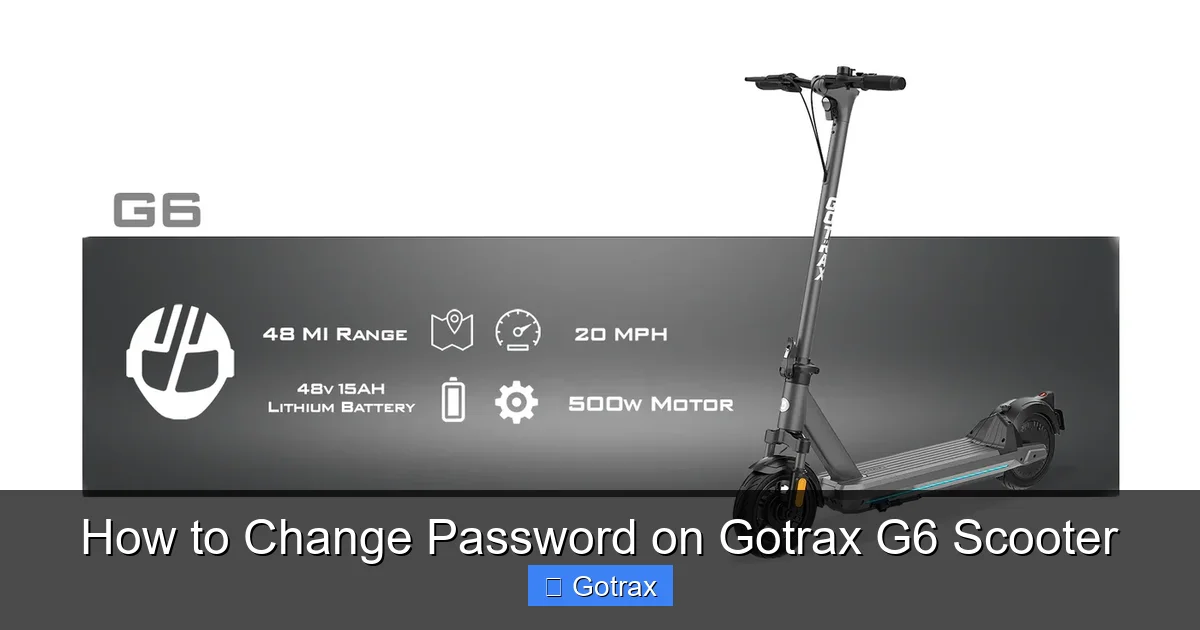
Visual guide about How to Change Password on Gotrax G6 Scooter
Image source: cdn.shopify.com
Additionally, if you’ve recently purchased a used Gotrax G6, changing the password ensures that the previous owner can no longer access your scooter’s settings. It’s also a good practice to update your password periodically, just like you would with your email or social media accounts.
Finally, if you’ve forgotten your current password and can’t unlock your scooter, changing it (or resetting it) is the only way to regain control. This guide will help you handle all these scenarios with ease.
What You’ll Need Before You Begin
Before you start the password change process, make sure you have the following items ready:
- Gotrax G6 scooter – Fully charged and powered on.
- Smartphone – Either an iPhone (iOS 11 or later) or Android device (Android 6.0 or later).
- Gotrax App – Downloaded and installed from the App Store or Google Play Store.
- Bluetooth enabled – Make sure Bluetooth is turned on in your phone’s settings.
- Stable internet connection – Required for app functionality and firmware updates.
- Your current password – If you’re changing it (not resetting).
Having these items ready will help you avoid interruptions during the process. If your scooter’s battery is low, charge it fully before starting. A weak battery can cause connection issues or prevent the app from communicating with the scooter.
Step 1: Download and Install the Gotrax App
The Gotrax G6 scooter is managed exclusively through the official Gotrax app. This app allows you to lock and unlock your scooter, adjust speed settings, check battery life, and—most importantly—change your password.
How to Download the App
To get started, open your smartphone’s app store:
- On iPhone, open the App Store and search for “Gotrax”.
- On Android, open the Google Play Store and search for “Gotrax”.
Look for the app published by “Gotrax Inc.” The icon features a blue and white design with the Gotrax logo. Tap “Install” or “Get” to download it. The app is free and typically takes less than a minute to install.
Create or Log In to Your Account
Once installed, open the app. You’ll be prompted to either log in or create a new account.
- If you’re a new user, tap “Sign Up” and enter your email address, create a password, and verify your email.
- If you’ve used the app before, tap “Log In” and enter your credentials.
Make sure to use a strong password for your Gotrax account—this is separate from your scooter’s password but equally important for security.
Update the App (If Needed)
Before proceeding, check if the app needs an update. Outdated versions may not support all features or could have bugs that affect password changes.
- On iPhone, go to the App Store, tap your profile icon, and scroll down to see pending updates.
- On Android, open the Play Store, tap the menu (three lines), select “My apps & games,” and update if needed.
Keeping the app updated ensures compatibility with your G6 scooter and reduces the risk of errors.
Step 2: Pair Your Gotrax G6 with the App
To change your password, your scooter must be connected to the app via Bluetooth. If you’ve already paired your G6, you can skip to the next step. If not, follow these instructions to pair it for the first time.
Power On Your Scooter
Press and hold the power button on your Gotrax G6 for 3 seconds until the display lights up. You should see the battery level, speed mode, and other indicators. Make sure the scooter is in a stable position—preferably on a flat surface—to avoid accidental movement.
Enable Bluetooth on Your Phone
Go to your phone’s settings and turn on Bluetooth. On most devices, you can swipe down from the top of the screen to access quick settings and tap the Bluetooth icon.
Open the Gotrax App and Add Your Scooter
Launch the Gotrax app and tap the “+” or “Add Scooter” button on the home screen. The app will begin scanning for nearby Gotrax devices.
When your G6 appears in the list (usually labeled “Gotrax G6” or a similar name), tap it to connect. You may be asked to confirm the connection on both the app and the scooter’s display.
If the connection fails, try the following:
- Move closer to the scooter (within 10–15 feet).
- Restart the scooter and try again.
- Turn Bluetooth off and on again on your phone.
- Close and reopen the app.
Once connected, the app will display your scooter’s status, including battery level, speed, and lock status.
Step 3: Access the Password Settings
Now that your scooter is paired, it’s time to change the password. The Gotrax app makes this process straightforward, but you’ll need to navigate to the correct menu.
Navigate to the Settings Menu
From the app’s home screen, tap on your scooter’s name or image to open the control panel. Look for a gear icon or “Settings” option—this is usually located in the top-right corner or bottom menu.
Tap “Settings” to open a list of options, including:
- Lock/Unlock
- Speed Mode
- Battery Info
- Firmware Update
- Password Settings
Select “Password Settings”
Tap “Password Settings” to enter the password management section. Here, you’ll see options to:
- Change Password
- Reset Password (if forgotten)
- Enable/Disable Lock
If you’re changing your password for the first time, the current password may be set to the default (often “0000” or “1234”). It’s highly recommended to change this immediately for security.
Step 4: Change Your Password
This is the core step—actually updating your password. Follow these instructions carefully to ensure the change is successful.
Enter Your Current Password
The app will prompt you to enter your current password. If you’ve never changed it, try the default codes:
- 0000
- 1234
- 1111
Type the current password using the on-screen keypad. Make sure to enter it correctly—most apps don’t show the characters as you type, so double-check before proceeding.
Create a New Password
Next, you’ll be asked to enter a new password. The Gotrax G6 supports 4-digit numeric passwords. While this may seem limited, it’s sufficient for most users when combined with other security features like GPS tracking (if available).
Choose a password that’s easy for you to remember but hard for others to guess. Avoid common combinations like:
- 0000
- 1234
- 1111
- Your birth year
- Repeating numbers (e.g., 2222)
Instead, try something like “5837” or “9204”—random but memorable. You can also use a pattern on the keypad, such as “2580” (down the middle column).
Confirm the New Password
After entering your new password, the app will ask you to confirm it by typing it again. This prevents typos and ensures accuracy.
If the two entries match, the app will process the change. You’ll see a confirmation message like “Password updated successfully” or “Settings saved.”
Test the New Password
To make sure the change worked, try locking and unlocking your scooter:
- Tap “Lock” in the app. The scooter should beep and the display may show a lock icon.
- Tap “Unlock” and enter your new password when prompted.
- If the scooter unlocks, the password change was successful.
If the scooter doesn’t respond, double-check that Bluetooth is still connected and that you entered the password correctly.
Step 5: Troubleshooting Common Issues
Even with careful steps, you might encounter problems when changing your password. Here are solutions to the most common issues.
“Incorrect Password” Error
If the app says your current password is incorrect, try the following:
- Ensure you’re entering the right 4-digit code.
- Check if Caps Lock is on (though passwords are numeric, some keyboards may interfere).
- Restart the app and try again.
- If you’ve forgotten the password, proceed to the reset option (see below).
Bluetooth Connection Lost
If the app disconnects during the process:
- Move closer to the scooter.
- Turn Bluetooth off and on.
- Restart the scooter.
- Close and reopen the app.
- Ensure no other devices are connected to the scooter.
App Freezes or Crashes
If the app becomes unresponsive:
- Force close the app and reopen it.
- Restart your phone.
- Reinstall the app if the problem persists.
- Check for app updates.
Password Change Doesn’t Save
If the new password doesn’t take effect:
- Make sure the scooter is powered on and connected.
- Try changing the password again.
- Update the scooter’s firmware (see next section).
- Perform a factory reset as a last resort.
How to Reset Your Password (If Forgotten)
If you’ve forgotten your password and can’t access your scooter, don’t panic. The Gotrax app includes a factory reset option that restores default settings, including the password.
Warning: Factory Reset Erases All Data
A factory reset will:
- Reset the password to default (usually “0000”).
- Clear all custom settings (speed mode, ride history, etc.).
- Unpair the scooter from the app.
Only use this option if you can’t remember your password and have no other way to access the scooter.
Steps to Perform a Factory Reset
- Open the Gotrax app and connect to your scooter.
- Go to “Settings” and look for “Factory Reset” or “Restore Defaults.”
- Tap the option and confirm when prompted.
- The scooter will beep and restart. The display may flash during the process.
- Once complete, the scooter will be reset to factory settings.
- Re-pair the scooter with the app and set a new password.
After the reset, you’ll need to reconfigure your preferences, such as speed mode and unit of measurement (miles or kilometers).
Updating Firmware for Better Performance
Outdated firmware can cause connection issues, app errors, and problems with password changes. Gotrax regularly releases updates to improve performance and fix bugs.
How to Check for Firmware Updates
To update your G6’s firmware:
- Open the Gotrax app and connect to your scooter.
- Go to “Settings” and look for “Firmware Update” or “System Update.”
- If an update is available, tap “Update Now.”
- Keep the scooter powered on and within Bluetooth range during the update.
- Do not turn off the scooter or close the app until the update completes.
The update process usually takes 2–5 minutes. Once done, restart the scooter and try changing your password again.
Tips for Keeping Your Scooter Secure
Changing your password is just one part of scooter security. Here are additional tips to protect your Gotrax G6:
- Use a physical lock: Even with a password, a U-lock or chain can deter thieves.
- Enable GPS tracking (if available): Some Gotrax models support GPS through the app.
- Park in well-lit areas: Avoid leaving your scooter in dark or isolated spots.
- Don’t share your password: Only give access to trusted individuals.
- Update your password every 3–6 months: Regular changes enhance security.
- Monitor app notifications: The app may alert you to unauthorized access attempts.
Conclusion
Changing the password on your Gotrax G6 scooter is a simple but essential task for maintaining security and control. By using the official Gotrax app, you can easily update your password, reset it if forgotten, and keep your ride protected from unauthorized use.
Remember to keep your app updated, ensure a strong Bluetooth connection, and choose a secure password. If you run into issues, the troubleshooting steps and factory reset option can help you regain access.
With this guide, you’re now equipped to manage your scooter’s password with confidence. Ride safe, stay secure, and enjoy the freedom of your Gotrax G6!